Skip to content

What’s new

Release notes

The latest updates to Hexby. New features, thoughtful improvements, and fixes that keep you moving.

Download Hexby →

Latest release

v0.3

Nov 10 – 13, 2026

  1. v0.3.3

    Design mode in explorations and worktree switching

  2. 2 more patches
  3. v0.3.0

Edit visually, review changes, and share explorations

Edit your UI visually with Design mode, review every change on a shared board, and send explorations to teammates as links. Hexby now also supports Vue, Nuxt and Angular projects.

New

  • Edit your UI visually with Design mode. Press D to change layout, spacing, sizing, colors, and text on the canvas or in Preview App. Select elements in Layers, adjust them in Properties, and save your changes to code. Learn more

  • Review changes with your team on a board. Your AI assistant summarizes the changes and marks them on before and after screens for each page. Add notes and comments, compare screens side by side, or click through changes in Prototype. Learn more

  • Share explorations with your teammates. Explore an idea with Hexby, then send your team a link for feedback. Teammates can open it on desktop or mobile and comment on specific elements. Send their feedback straight to your AI assistant. Learn more
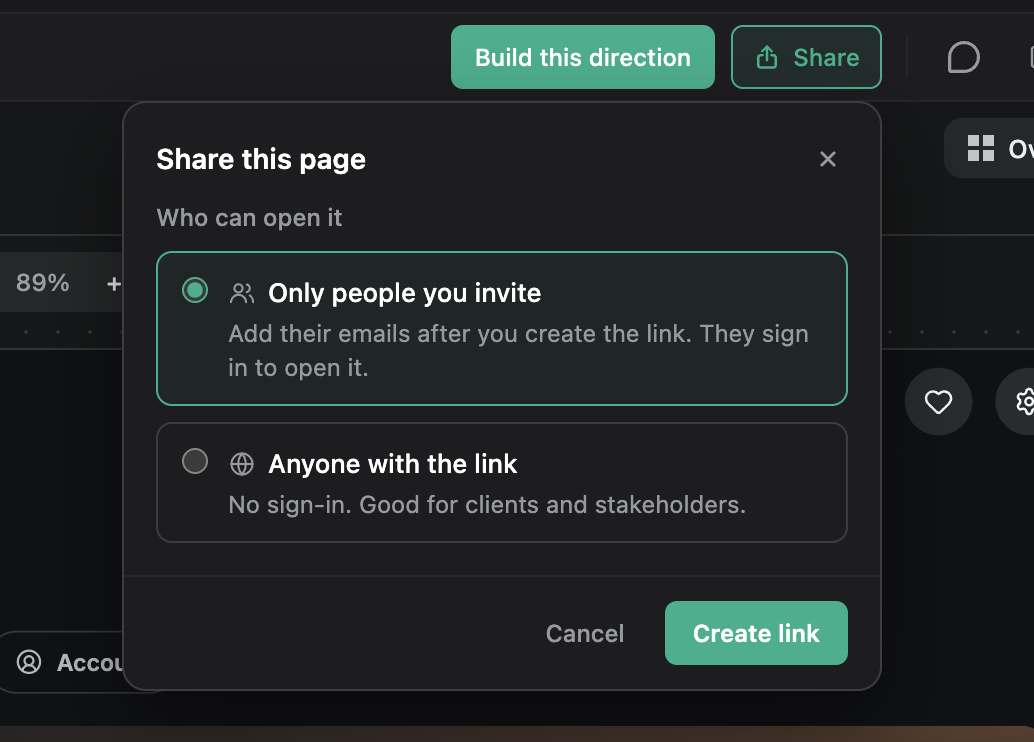
    Share an exploration with invited people or anyone with the link.
  • Use Hexby with more frameworks. Added support for Angular 17+, Vue 2, Vue 3, and Nuxt.

  • Google Antigravity Agent support.

Improved

  • Added grouping options in All Components View to better organize your canvas.
  • Clearer, actionable messages when a repository or request fails and what to do next.
  • Search your chat with Cmd/Ctrl+F.
  • Attach additional context to chat, plan and explore using text files, markdown documents and PDFs.
v0.2

Oct 19 – Nov 3, 2026

  1. v0.2.12

    An updated link to the Hexby community

  2. 11 more patches
  3. v0.2.0

Introducing Hexby

Hexby turns your existing codebase into a visual canvas for designing with the AI coding agents you already use. Explore your app’s pages and components, make changes directly on your real UI, and review the results before opening a pull request.

New

  • Start with your app. Open a local project or connect a repository.

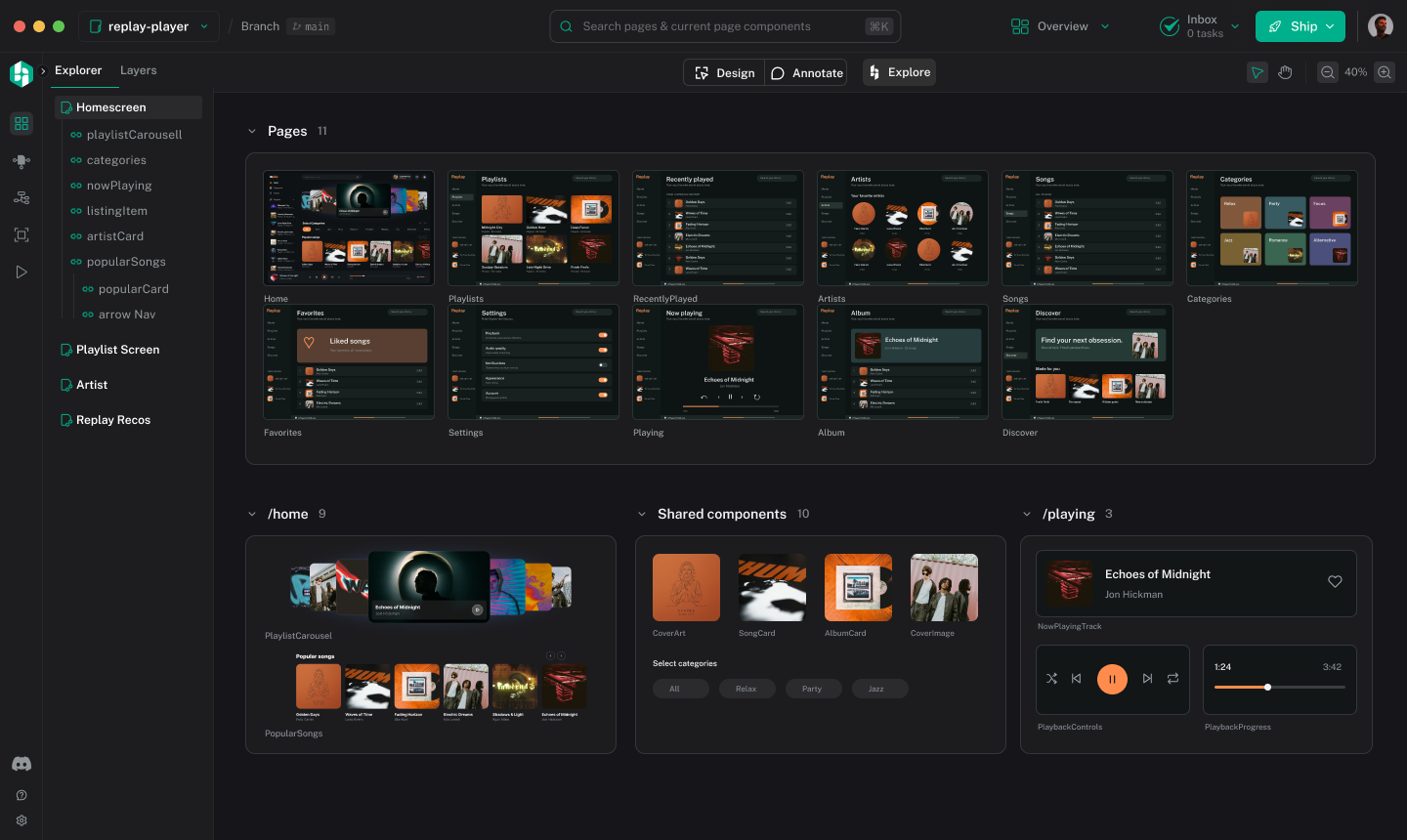
  • Find what you want to change. Browse Pages, All Components, and Component Map, with previews to help you locate the right page or component.

    Hexby’s All Components view showing app components on a visual canvas.
  • Give your assistant context. Connect your AI coding assistant and pass it the selected page or component.

  • Point to specific changes. Annotate elements directly in the preview to show your assistant what you mean.

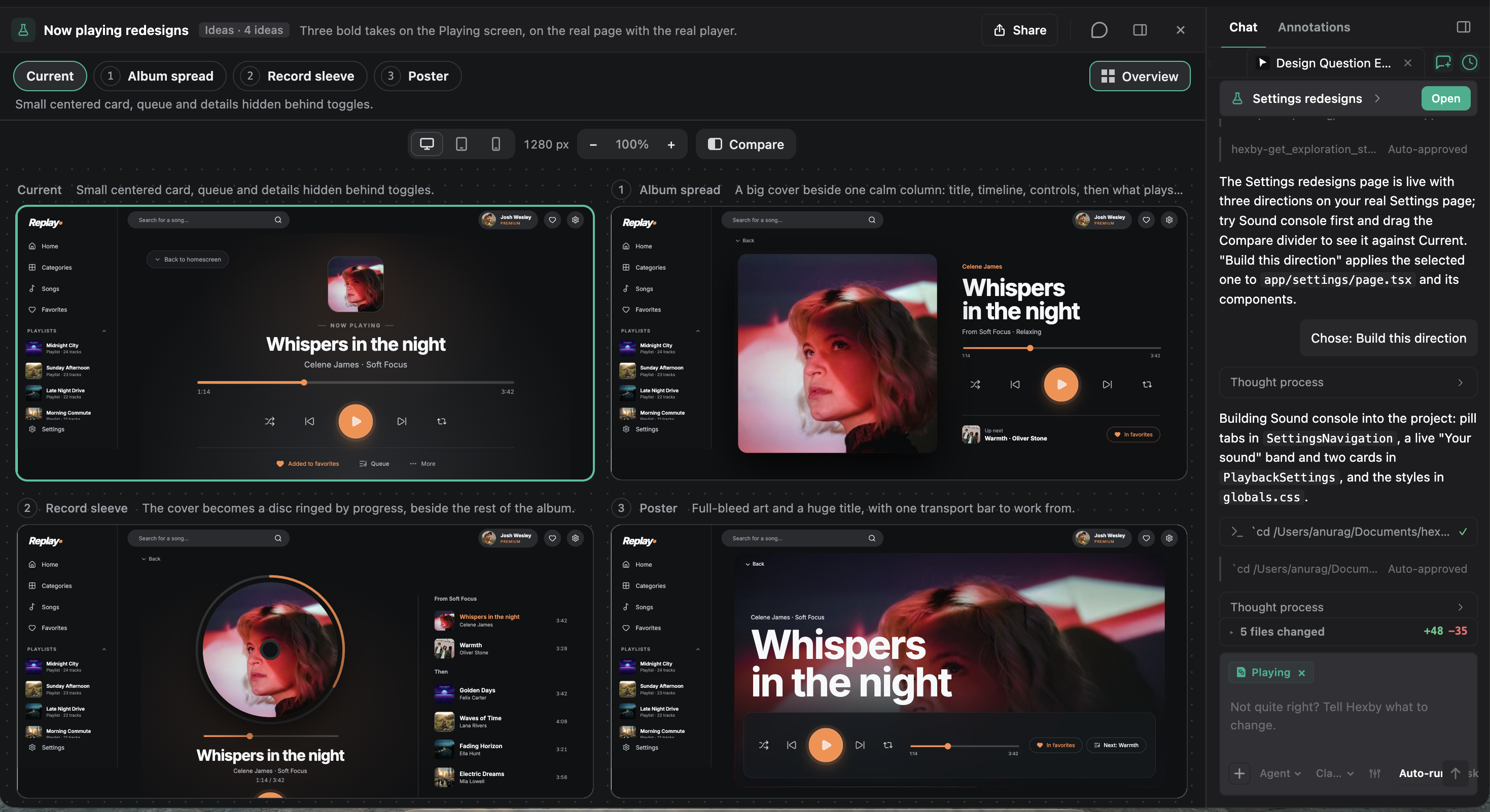
  • Explore design directions. Use Explore with Hexby to compare ideas before implementing them.

    Hexby Explore showing the current Now Playing screen alongside three proposed design directions.
  • Try your changes. Use Preview App to test them in your running app.

  • Review and hand off. Compare before-and-after previews, gather teammate feedback, and open a pull request.