
Review and Share UI Changes
Show what changed, collect feedback on the UI, and hand approved work to developers.
Help your team understand your UI changes and agree on what’s ready to hand off. Hexby brings before-and-after screens, notes explaining the UI changes, and feedback together on one review board. Teammates can comment on the exact button, heading, or other element they want you to check.
Teammates can open the review link on a desktop or phone to review your UI on the go. Use their feedback to refine the UI, then share an updated version for approval. When it’s ready, create a GitHub pull request with screenshots and the review link so developers can see the UI alongside the code.
Create a review
After editing your UI, create a review to show them to your team.
- In Hexby, open the project and branch containing your UI changes.
- Click Ship in the top-right corner, then Submit for design review.
- Enter a name for the review, such as “Simplify account setup.”
- Wait for your connected AI Agent to finish preparing the board.
Your agent prepares before-and-after screens and notes explaining the UI changes. It also writes a brief: a short explanation of the goal and what changed in the UI. Check these before sharing. You can edit the board first; creating a review does not invite anyone.
If preparation stops, check the agent’s chat for an error or unfinished work. Ask it to finish preparing the review, then check the board again.
To return to a review later, open it from Overview or a review notification in Inbox.
Connect an agent for automatic preparation
If no agent is connected, follow AI Assistant to connect one, then ask it to prepare the review. You can also write the brief and edit the board yourself. A brief is required to send the review; change notes are optional.
Explore the review
The review opens in Board. Use the tabs at the top to switch views.

| View | What you can do |
|---|---|
| Board | Understand the UI changes through the brief, before-and-after screens, and change notes. Move around the board and zoom in. |
| Compare | Spot visual differences on one screen. Use side-by-side, slider, or overlay comparison, and choose which versions to compare. |
| Prototype | Click through a flow, such as account setup. This option appears only when Hexby prepares a flow for the review. |
The title area shows the review’s branch, versions, progress, and reviewers. Use the screen list to jump to a screen, and the comments panel to follow feedback without searching across the board.
Open Activity in the side panel to see who sent the review, invited reviewers, or shared a new version.
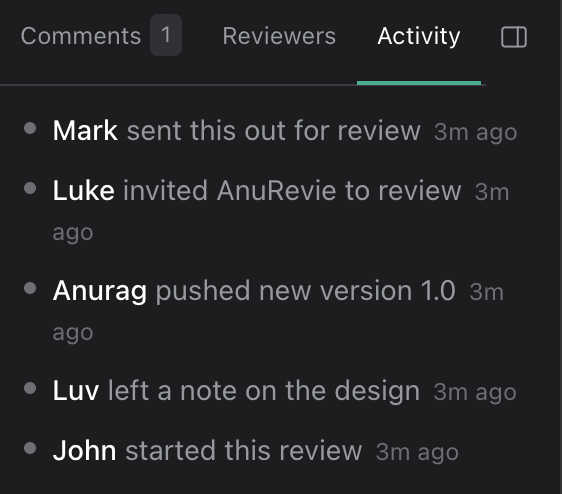
Original shows the UI before your edits. It is the Before version used to show what changed in the UI. See How Original is chosen if the starting screen is not what you expected.
Prototype is optional
If the UI edits do not form a flow, such as a style update to one page or component, Hexby does not show the Prototype option.
Edit the review board
Help reviewers understand your UI edits and what you want them to check. Board edits change the review, not your app’s code.
- Edit text: double-click the brief or a numbered change note. You can also ask your agent to rewrite them.
- Choose screens: use Edit component list to choose the previews to include. This does not exclude code changes from the pull request.
- Add context: use Text, Sticky note, or shapes in the bottom toolbar. Select an item to change its style.
Change notes explain your UI edits; comments are where reviewers discuss them. Board edits save locally. Send or resend the review to share them with reviewers. Hexby shows a message if an edit fails to save.
Before sending
Fill in the brief, check both previews, and try any included flow. Fix missing or broken previews where possible.
Invite teammates to review
Invite the teammates who need to review your UI.
- Click Send for review in the review window.
- Add teammates by name or email address.
- Check the title and invitation summary. Tell teammates what you want them to review.
- Sign in if prompted, then send.
Hexby prepares and checks the previews before sending invitations. If a screen fails, choose Fix with agent, cancel, or use Send anyway if you are comfortable sharing a review with that preview missing.
Once sent, use Copy link to share the review. Teammates can open it in their browser and sign in or request access if needed.
To add someone later, click + beside the reviewer avatars near the title. The send dialog opens again. Add the reviewer and check the version and summary before sending.
Review a teammate’s UI changes
Open the invitation link in your browser and sign in if asked. Start with the brief to understand what the author wants you to check. Use Board for the overview, Compare for a closer look, and Prototype to try a flow when available.
- Comment on an element: turn on the comment tool above the board, click the element, type your feedback, then click Post. The comment stays attached to that element.
- Discuss the UI: reply in the comment thread so the author can follow the conversation.
- Request Changes: choose this action and explain which UI elements need updating. Leaving a comment alone does not mark the review as changes requested.
- Approve all: approve the whole sent version, not just the screen you are viewing. This approves it immediately. Open comments stay open.
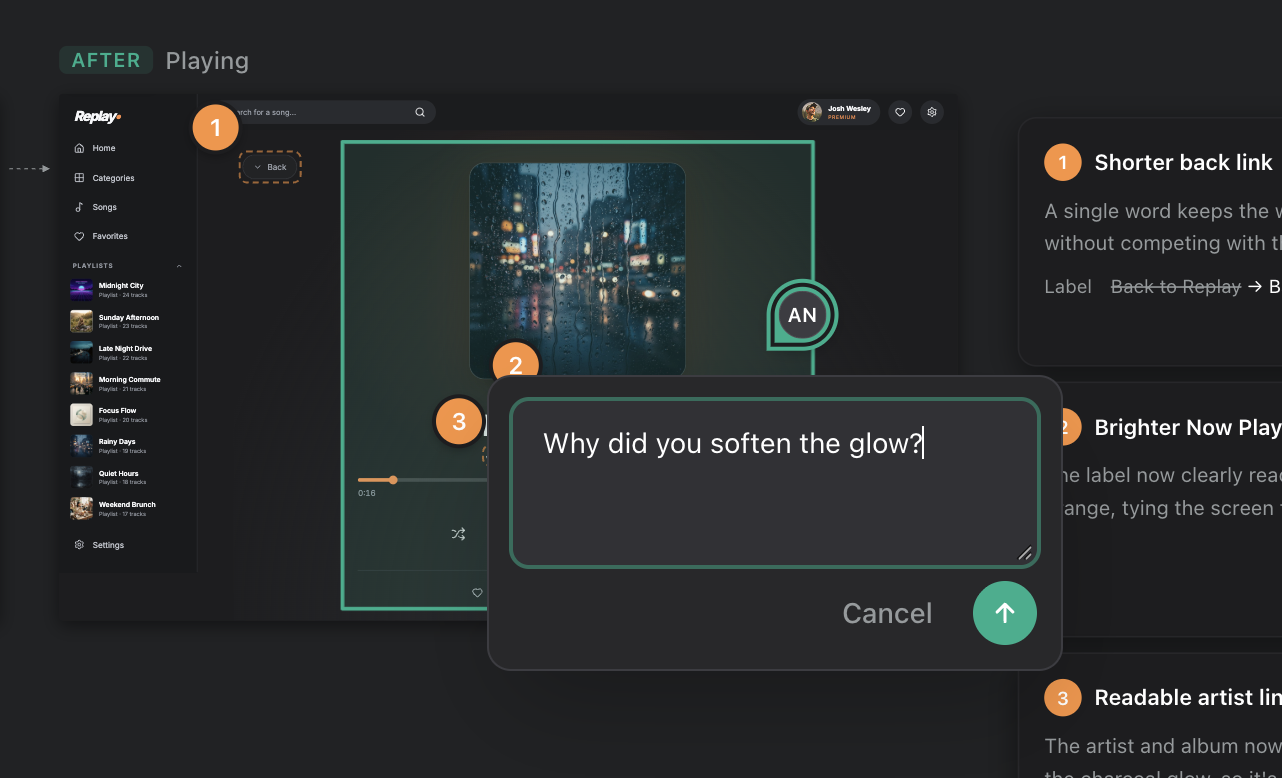
Before deciding, check the screen sizes affected by the UI edits. In Compare, use the available Desktop, Tablet, and Mobile controls. If a size is unavailable, ask the author to check it before you approve.
Only invited reviewers can approve or request changes. If the review is still waiting for feedback and you cannot see these buttons, ask the author to add you as a reviewer. The buttons also disappear once the review is approved or finished.
Be specific with feedback
“Keep the button label on one line at mobile width” gives the author a clearer next step than “Fix the button.”
Update the UI and resend for review
Open the review in Hexby to see which UI elements need attention.
- Use Fix with agent on a comment, or edit the UI in Design mode.
- Check the updated UI and code after your UI edits are finished.
- Reply to comments and mark the ones you have fixed or answered as resolved.
- Check the changed-screen count near the title, then choose Send update to share the revised UI and notify reviewers. If there are no new UI changes, the button says Resend for review.
Use Fix all with agent for open comments on UI elements that contain reviewer feedback. It skips resolved comments and general discussion.
To compare updates, open Compare and select Version 1.0 in Before and Version 2.0 in After. Board always compares against Original.
Send updates for another approval
Reviewers see the last version you sent, not your latest local UI edits. Each new sent version needs approval before you hand it off as approved.
Create a GitHub pull request
Once approved, choose Hand off to developers to create the GitHub pull request. Check the repository, branch, changed files, title, and description before completing the handoff.
The pull request includes screenshots and the review link so developers can check the UI alongside the code. Choose Open pull request to continue in GitHub. Creating the pull request does not merge the code. Your team does that in GitHub after its usual checks.
Handing off without approval
You can also start from Ship → Handoff to Devs. If a review is still open, Hexby asks you to withdraw (cancel) the active review first and explains what will be removed. Read that message before continuing.
If your code changed after approval
If you edit the code after approval, Hexby asks what to include in the pull request. The choices depend on whether you have committed the newer work:
| Choice | What happens |
|---|---|
| Send these changes for review first | Teammates review the newer work before handoff. |
| Hand off the approved version anyway | Newer uncommitted edits stay out of the pull request. |
| Open it anyway, with the extra work | Include newer commits that have not been reviewed. |
| Discard my changes | Delete changes made after approval. Requires confirmation and cannot be undone through Hexby. |
Read the listed files and the explanation before choosing.
Next step
See Handoff to Engineers for checking the running app, writing a handoff note, and reviewing the UI alongside the code. For preview, access, or handoff problems, see Troubleshooting.