
Preview App
Preview App
Run the full app with its real routes, context, and device sizes.
Use Preview App when an isolated component preview is not enough. It runs the project’s own app so you can check real navigation, page context, providers, and full-screen behavior.
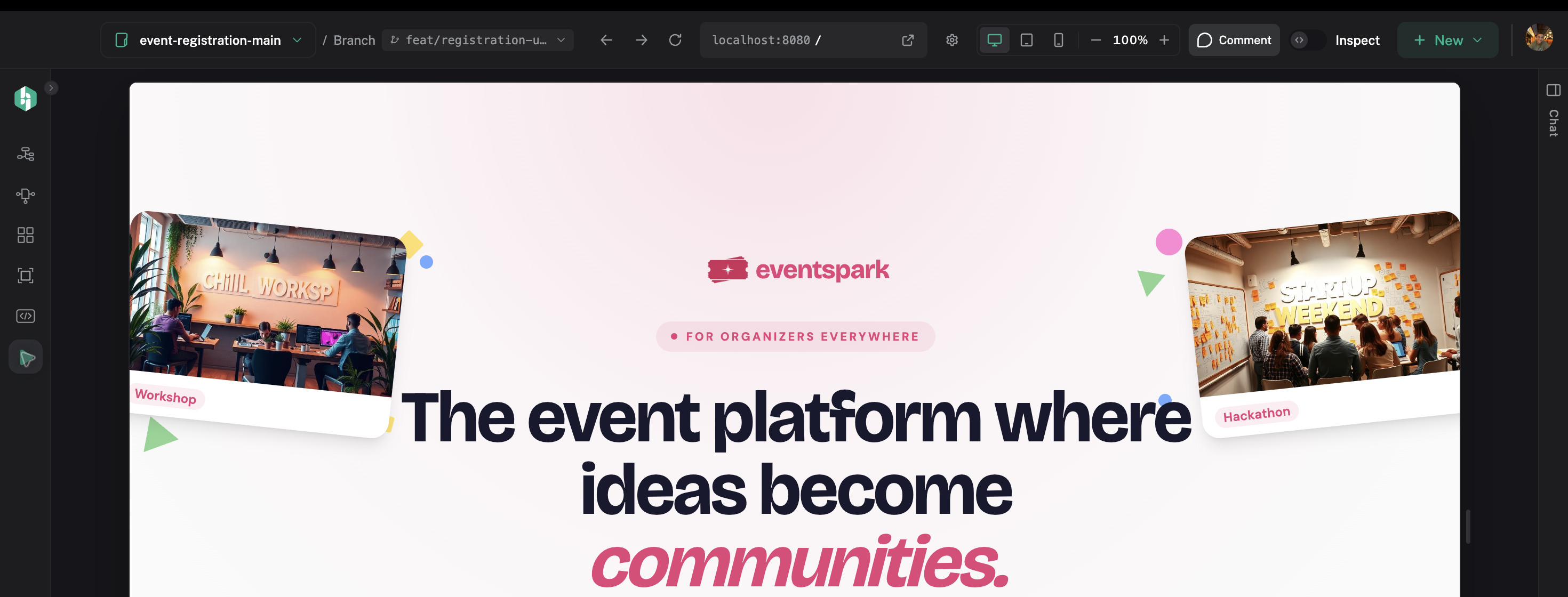
Preview App shows the running application inside Hexby.
Start the app
- Open Preview App from the workspace sidebar.
- Start the preview if it is not already running.
- Wait for the app to load.
- Use the address bar or the app’s navigation to open a route.
Hexby usually finds the development command from the project. If it cannot, enter the same command your team uses to start the app locally. The app still needs its normal dependencies, environment values, services, and sign-in.
Choose a size and inspect
Use the toolbar to navigate, reload, zoom, or switch between desktop, tablet, and mobile sizes.
Turn on Inspect to select something in the running app. The inspection panel can show its layers, visible content, props, related source, and console messages.
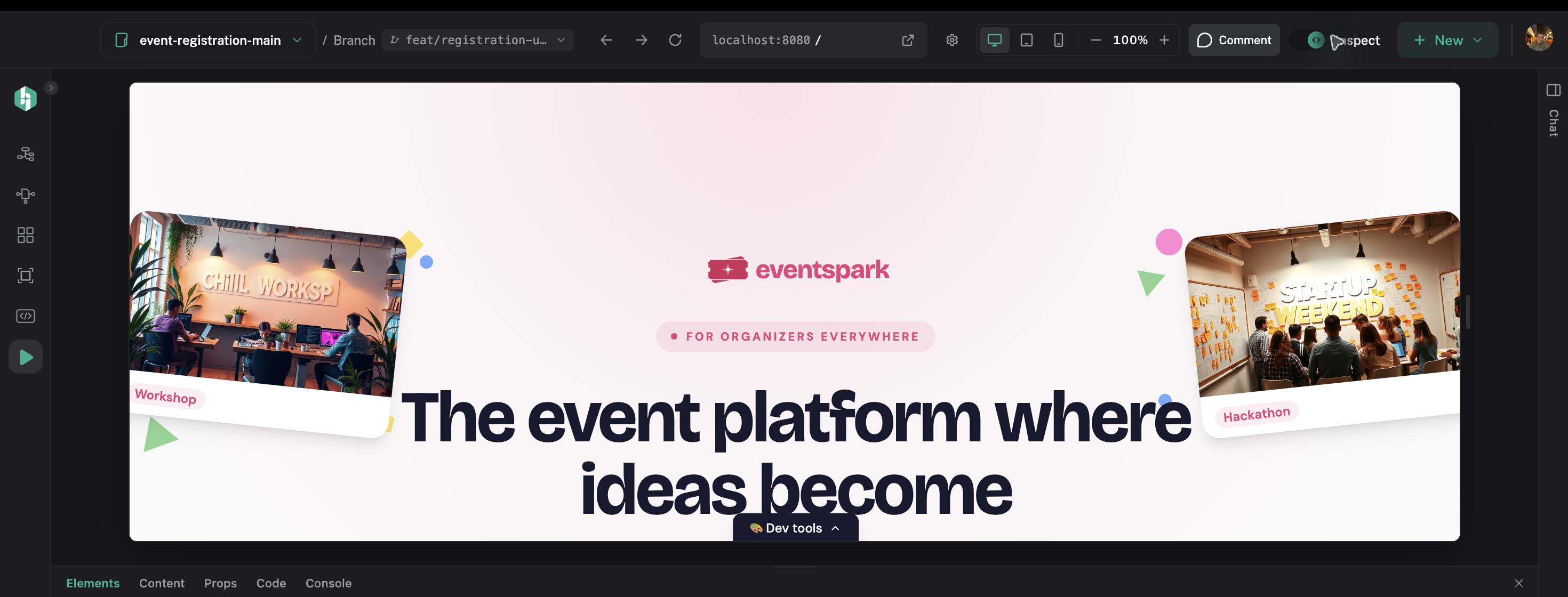
Inspect mode lets you point to the exact element you want to discuss.
Try a temporary edit
Inspect mode can change text, styles, links, images, attributes, or accessibility values for exploration. These edits affect only the preview and reset when it reloads.
When the direction is right, choose Apply changes. Hexby sends the request to your connected assistant. Review the source diff before keeping it.
Choose the right preview
Use a component preview for one component or state. Use Pages for one screen’s structure. Use Preview App when the result depends on a route, provider, or the full application.
If the app will not start
Check that dependencies are installed, the start command works from the project root, the port is available, and required environment values are present. Read the first concrete startup error before changing anything. For more help, see Troubleshooting.
Next step
Use Review Changes to compare an updated app with the original.