
Install Open Project
Install and open a project
Install Hexby, open your codebase, and start its first analysis.
Install Hexby, choose a project, and let Hexby map its UI.
Before you start
Have:
- A Hexby account.
- A React or Preact project using Vite or Next, or an Angular CLI project. Angular component previews require Angular 17 or newer.
- Project dependencies installed.
- Git installed on the same machine—even for local projects.
If Git is missing, install it for macOS, Windows, or Linux.
Install Hexby
Open the installer, launch Hexby, and sign in.
Open a project
On first launch, choose the path that matches your project:
Local project
Open a local project
Open the folder that contains the project root and its dependencies.
- 01Find the project root
Choose the folder that contains
package.jsonand the lockfile. - 02Open it in Hexby
Select
New → Open project, or drag the folder into the project picker. - 03Let Hexby map the UI
Wait for the workspace to load, then start exploring Pages and Components.
For a local project, open the folder that contains package.json and the
lockfile. Choose the checkout and branch you intend to inspect.
If the project is not ready, install its dependencies or see Troubleshooting.
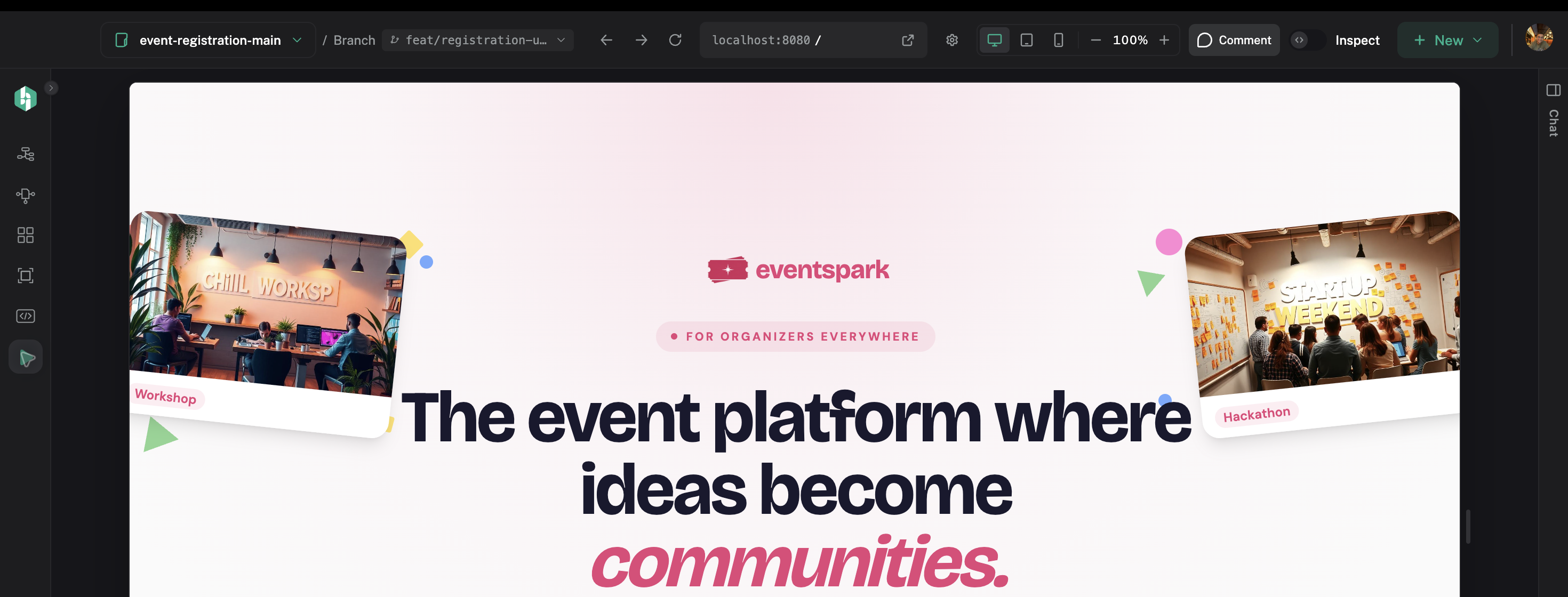
Once the project opens, Preview App confirms the full application context.
Once the project is open, continue with First Analysis to understand the analysis and first previews.
To switch projects later, use the project control in the top-left of the workspace.