
Pages
Pages
Explore a screen and the components that make it up.
Use Pages when you want to understand one screen as a whole instead of searching the entire project.
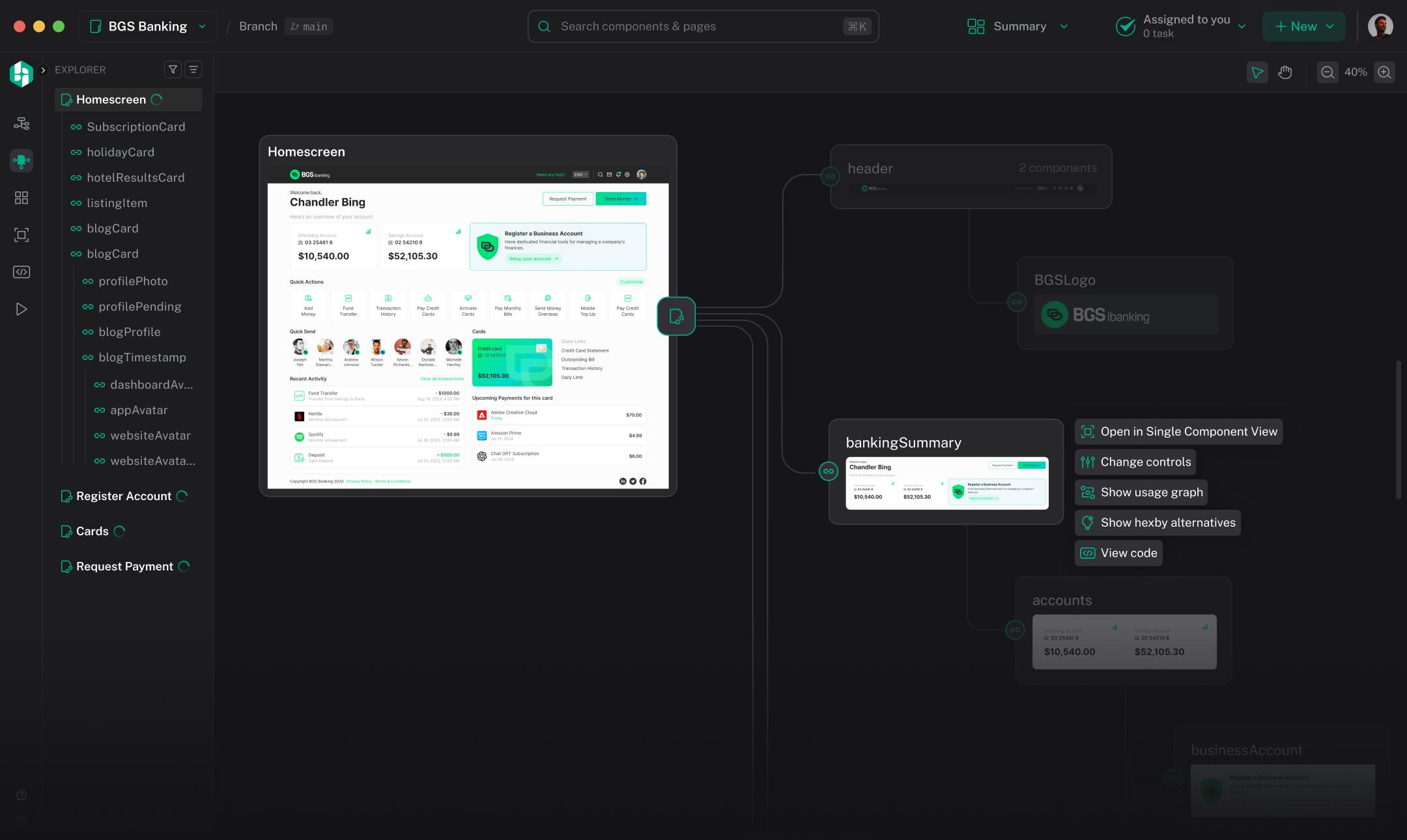
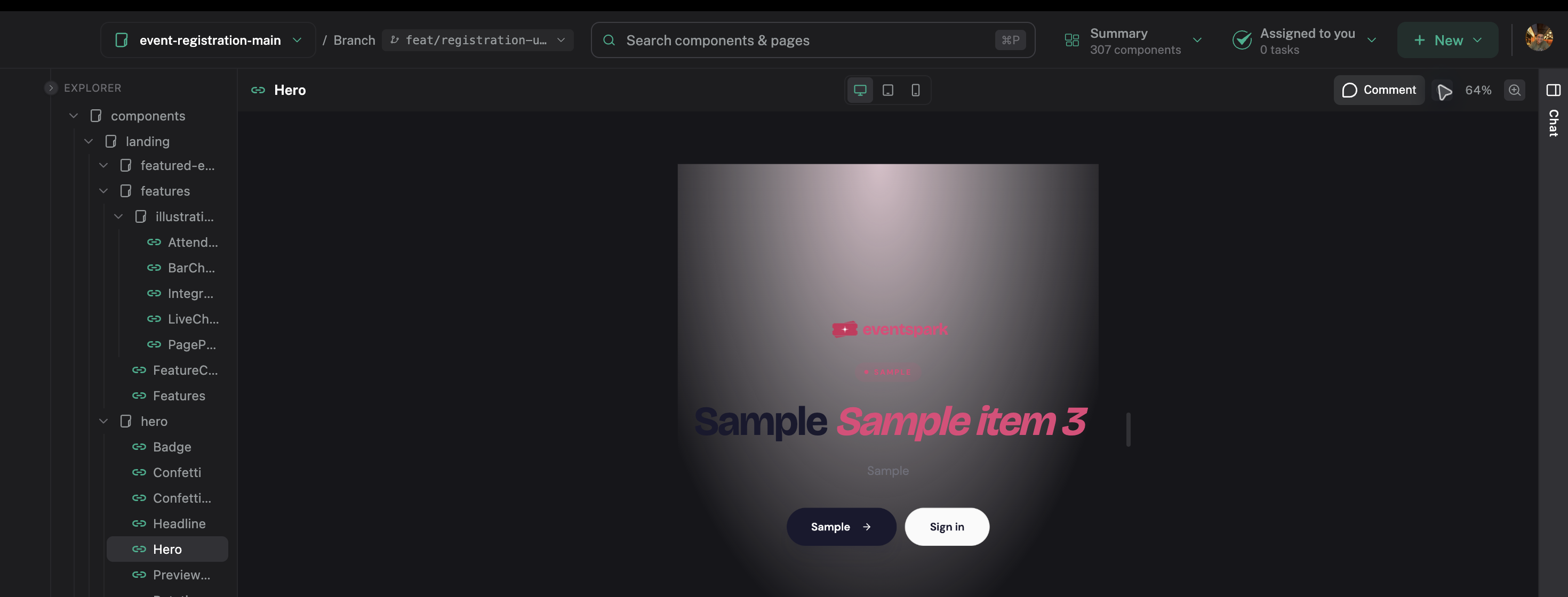
Open a component from the page tree to inspect it on its own.
Choose a page
The Pages Explorer lists the screens Hexby found. Select one to make it active on the canvas.
Explore the component tree
Expand the active page to see the components it uses. A shared component can appear under more than one page or parent; those entries still refer to the same component.
Use the tree to answer:
- Which component creates this part of the screen?
- Is it reused elsewhere?
- Which component should I inspect before asking for a change?
Use the canvas
The canvas shows the active page and its reachable components. You can:
- Pan and zoom across the screen
- Select a page or component
- Focus on a selected component
- Open Single Component View or Code View
Selecting a component in the tree selects it on the canvas. Selecting another page updates both views.
Filter the view
Use the available component, preview, and sort filters to narrow the tree and canvas. If nothing appears, reset the filters before assuming the page is empty. A blocked component can still be selected and inspected.
Choose the right view
Use Pages for a screen or page-level change. Use All Components for project-wide search, Component Map for broader relationships, and Preview App for routes and full-app behavior.
Next step
Open Single Component View to inspect a selected component’s preview, states, usage, and source.