
Annotate
Pin feedback to an element in your app, ask your AI Agent to fix it, and check the result.
Point to the UI you want to improve and tell your AI Agent what should change. Annotate attaches your feedback to the selected element, so your agent gets the page and element context alongside your instructions.
Use it to flag issues as you check your app, then ask your agent to fix one note or work through several together.
Saving a note keeps it local
Saving records feedback without asking your agent to act or sharing it with teammates. Use Review and Share UI Changes for team feedback.
Start annotating
- Open a component preview or Preview App.
- Wait for the preview to load. In Preview App, navigate to the screen you want to change.
- Choose Desktop, Tablet, or Mobile to show the issue at the relevant size.
- Click the Annotate button in the top toolbar, or press A.
- Click the element you want to change. A note editor opens beside it.
Leave Annotate to try the app
Clicks select elements while Annotate is on. Click the × beside Annotate to navigate or interact with the app again.
If the preview is empty or blocked, see Troubleshooting before adding feedback.
Write your feedback
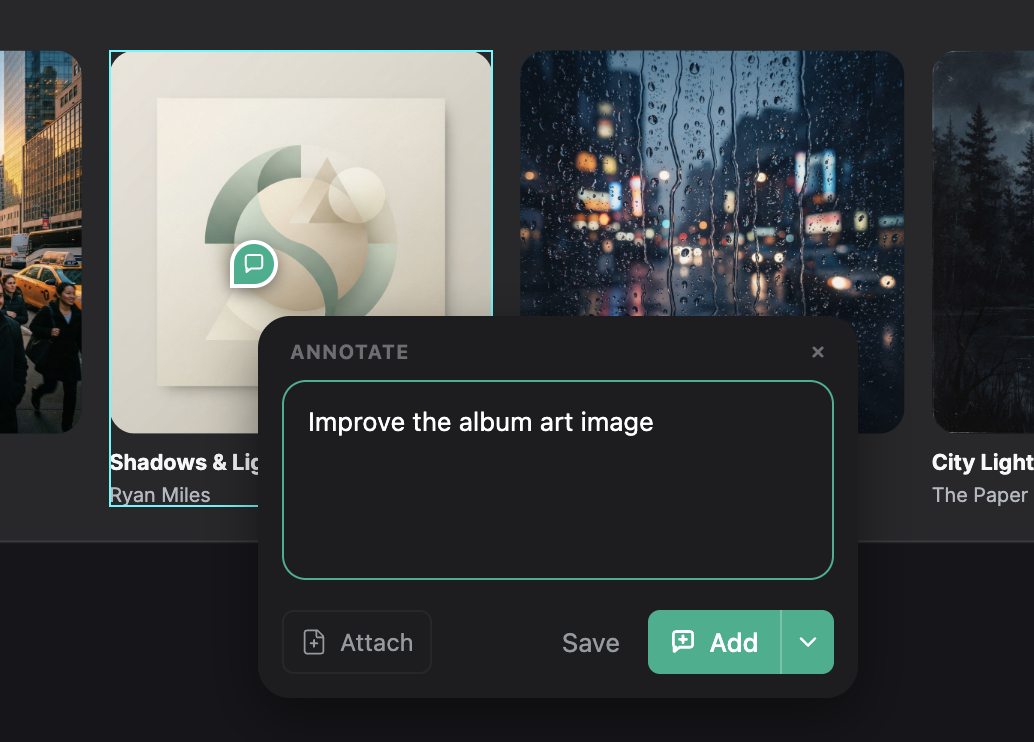
In the note editor, describe the change you want. For example:
Keep this button’s label on one line at mobile width. Keep the wording and make sure the button fits within the screen.
Keep each note focused on one change. Include the screen size and any steps needed to see the issue, such as opening a menu.
Use Attach, drag and drop, or paste to add a reference image or document. Explain what to follow, such as its spacing or layout.
Selected the wrong element? Close the editor with × without saving, then select the right element.
Choose what happens next
After writing your feedback, choose an action:
- Save: keep the note in the right panel’s Annotations tab to fix later. It stays out of your chat message.
- Add: save the note and attach it to your draft chat message. Add instructions or more notes before sending.
- Send: save and send the note immediately. The agent can start changing code.
Use the arrow beside Add or Send to switch between them, then click the button to act. Save is separate. All three actions save the note; only Send submits it to your agent immediately.
On an existing note’s pin, Add to chat lets you include the saved note in a message. See Chat for guiding the agent while it works.
Fix saved notes with your agent
Connect an agent to make fixes
Follow AI Assistant if you have not connected an agent yet.
If you chose Save, open Annotations in the right panel when you are ready to make the changes:
- Fix with agent: ask your agent to implement one note.
- Fix all with agent: send open notes across the project, including other pages and components. Read the other groups before sending.

Bulk fixes skip resolved notes, notes already queued, and threads without written feedback.
Your agent edits project files. Wait for it to finish, then check the result.
If the agent stops, check Chat for errors or requests needing your response, then ask it to continue.
Check the fix
Resolved notes still need checking
Your agent may resolve a note after a fix. Check the UI yourself. If the note is hidden, show resolved notes to find it.
- Leave Annotate and return to the same page and screen size.
- Compare the updated element with the result you described in the note.
- Try the affected interaction, such as clicking the button or submitting the form.
- Check other screen sizes. A change to a shared component can also affect other places that use it.
- Review the changed files in your code editor’s Git changes view.
If the result needs work, reply to the note with what you expected and ask for another fix.
Resolve or reopen a note
Once you have checked the fix, open the note and click Resolve this annotation (the circle icon). Resolved notes are hidden from the preview and list by default.
To see them again, click the circle icon with the resolved-note count beside the right-panel tabs. Open a resolved note and choose Reopen this annotation if it still needs work, then add details and request another fix.
Find and manage your notes
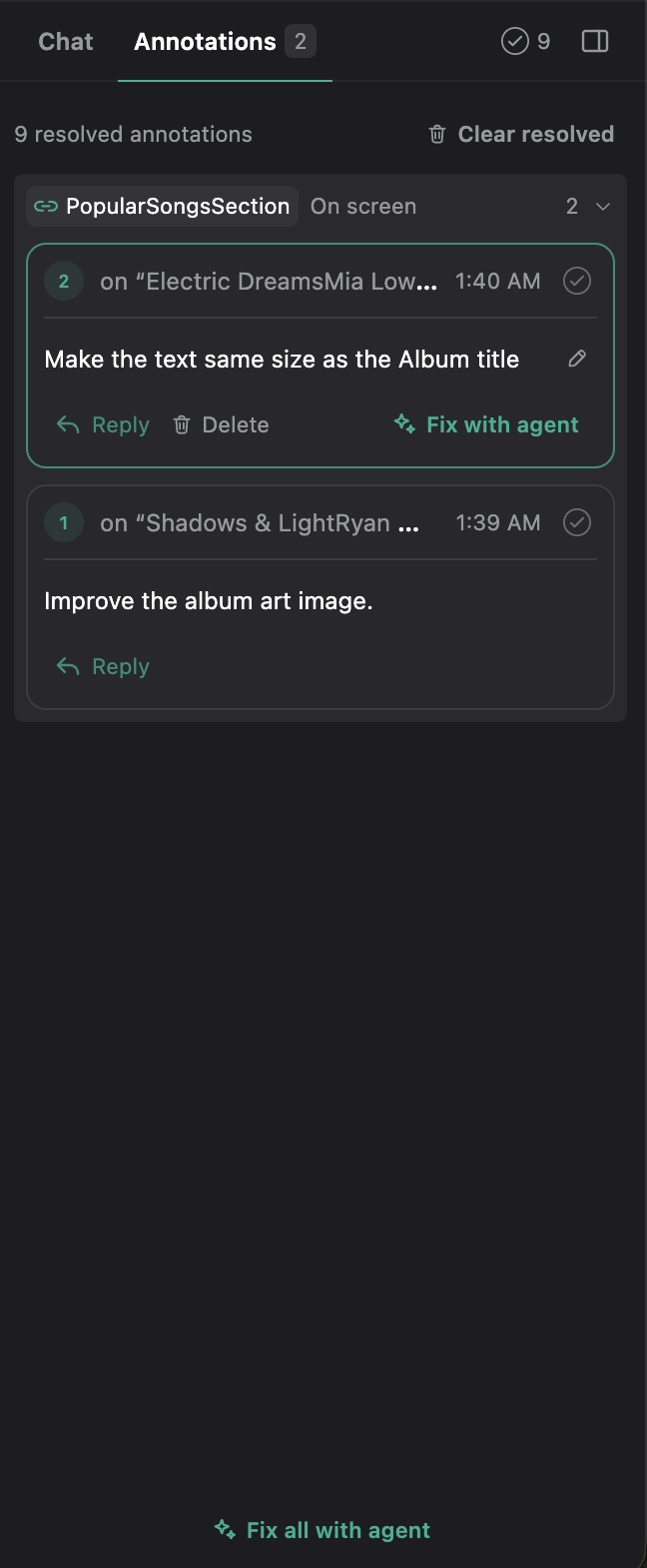
Open Annotations in the right panel. Notes are grouped by page or component, with the current preview first. Click a note in another group to go there, or click a preview pin to reopen its note.
- Edit your wording: hover over your comment and click the pencil (Edit). Change the text, then press Enter or click outside the field to save. Press Esc to cancel the edit.
- Add detail: use Reply to add instructions to the existing thread.
- Remove a misplaced note: use Delete on the annotation. This removes the thread, its replies, and attachments. Read any confirmation before continuing.
If a note will not save
Copy the text from the error notice before dismissing it, then try again. Check for any attachment error too.
Next step
Use Review and Share UI Changes to compare the updated UI with the original, collect feedback from teammates, and hand off approved work to developers.