
Explore with Hexby
Preview redesigns, polished interfaces, Figma or screenshot matches, and new features before changing project code.
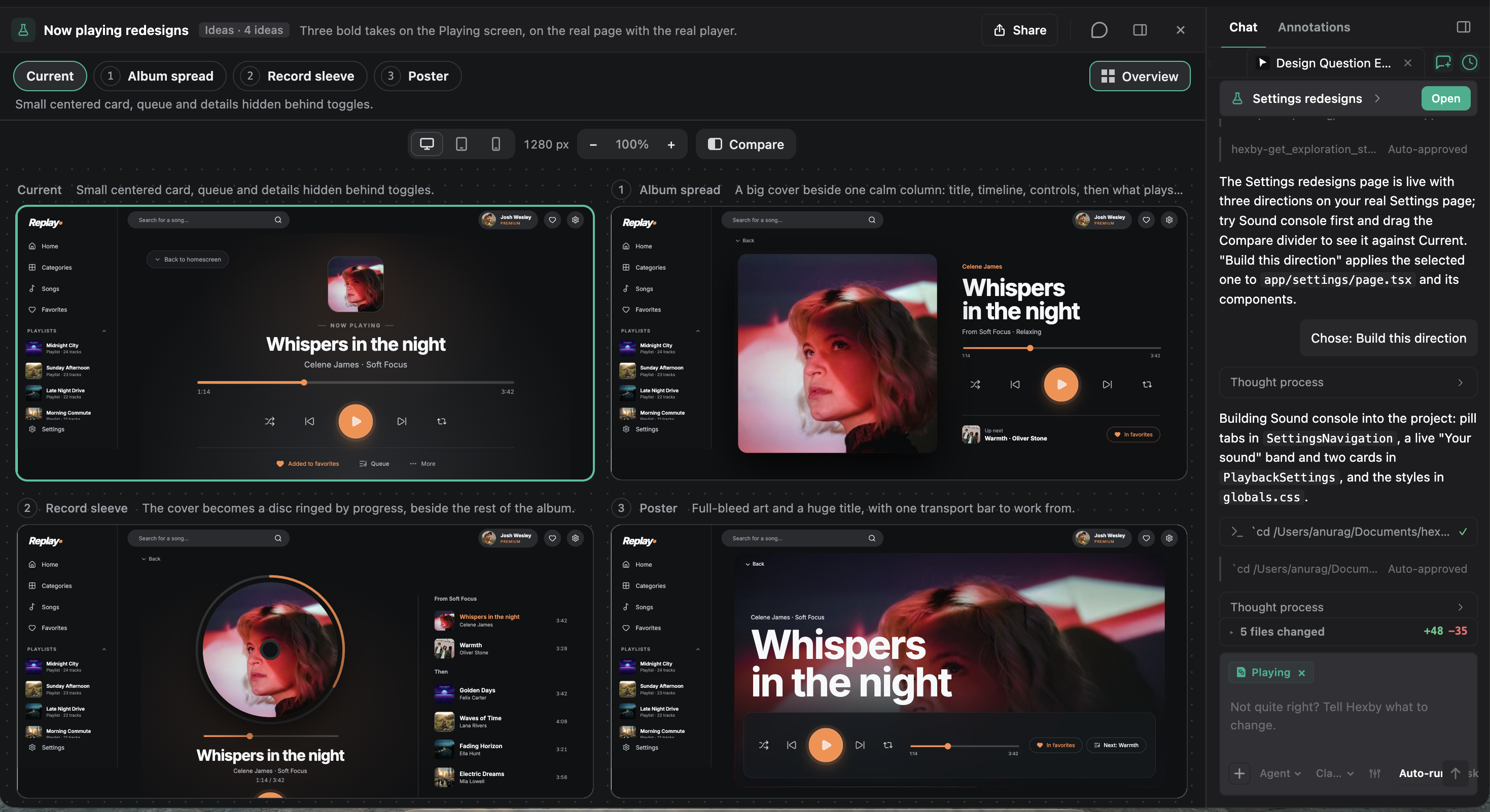
See how a change could work in your app before you build it. With Explore with Hexby, you can compare redesigns, try out a new feature, and refine the direction with your AI assistant, using your app's own components.
Exploring leaves your project code unchanged. Refine the preview, share it for feedback, then ask the assistant to build the direction you choose.
Start exploring
Explore requires an open project and a connected AI assistant.
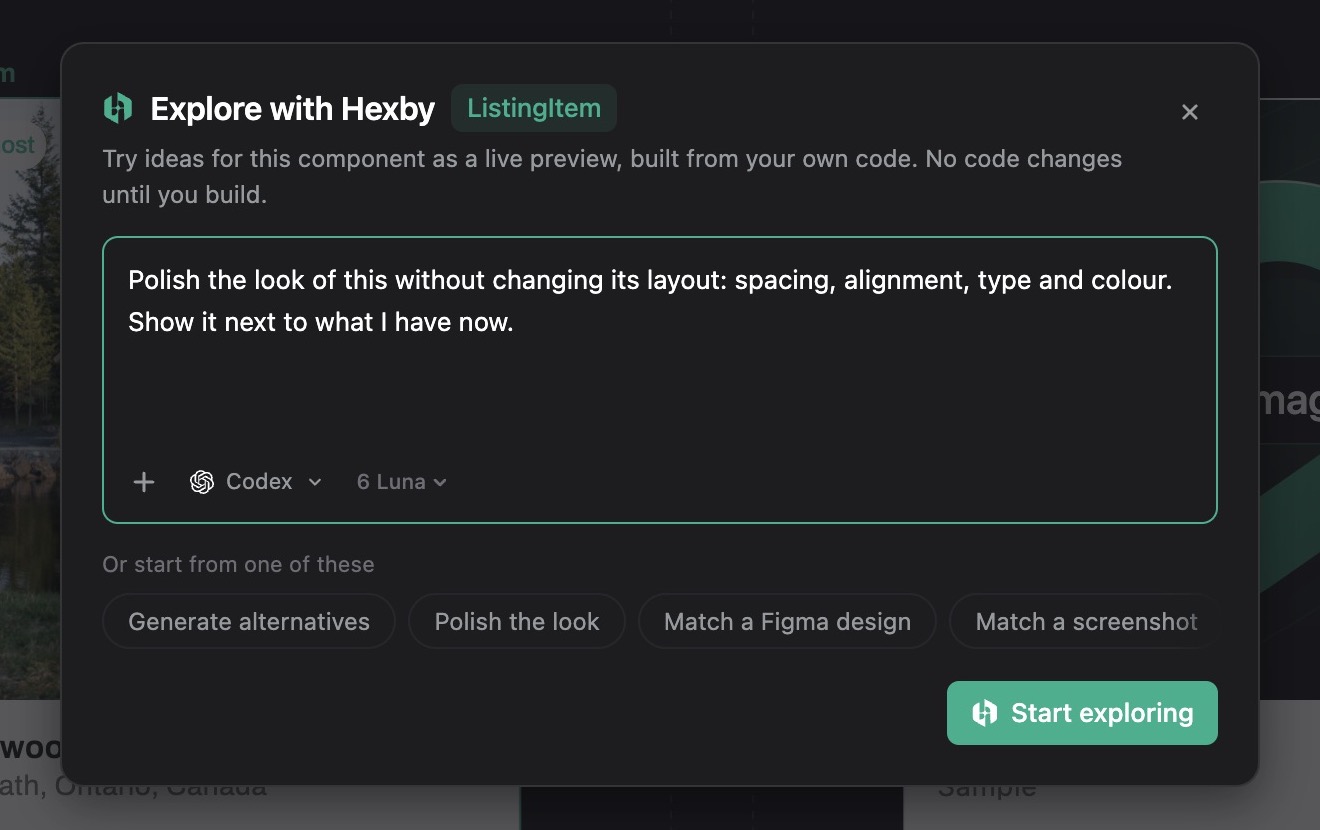
Open Explore with Hexby from the top toolbar. Select a component first to focus on it, or leave nothing selected to explore across your app. You can also open Explore from a component's menu to select that component automatically.
- Check the selected component above the prompt box, if you chose one.
- Write a prompt, or choose a suggestion and edit it.
- Optionally, paste an image as a visual reference.
- Select Start exploring.
Describe the idea
A useful request explains the problem, what you want to compare, and what should stay the same. For example: “Polish this card's spacing and type, keep its layout, and show it beside the current design.” Suggestions adapt to your selection:
Generate alternatives
Compare new designs with the current UI, such as two different layouts or one bolder version.
Polish UI
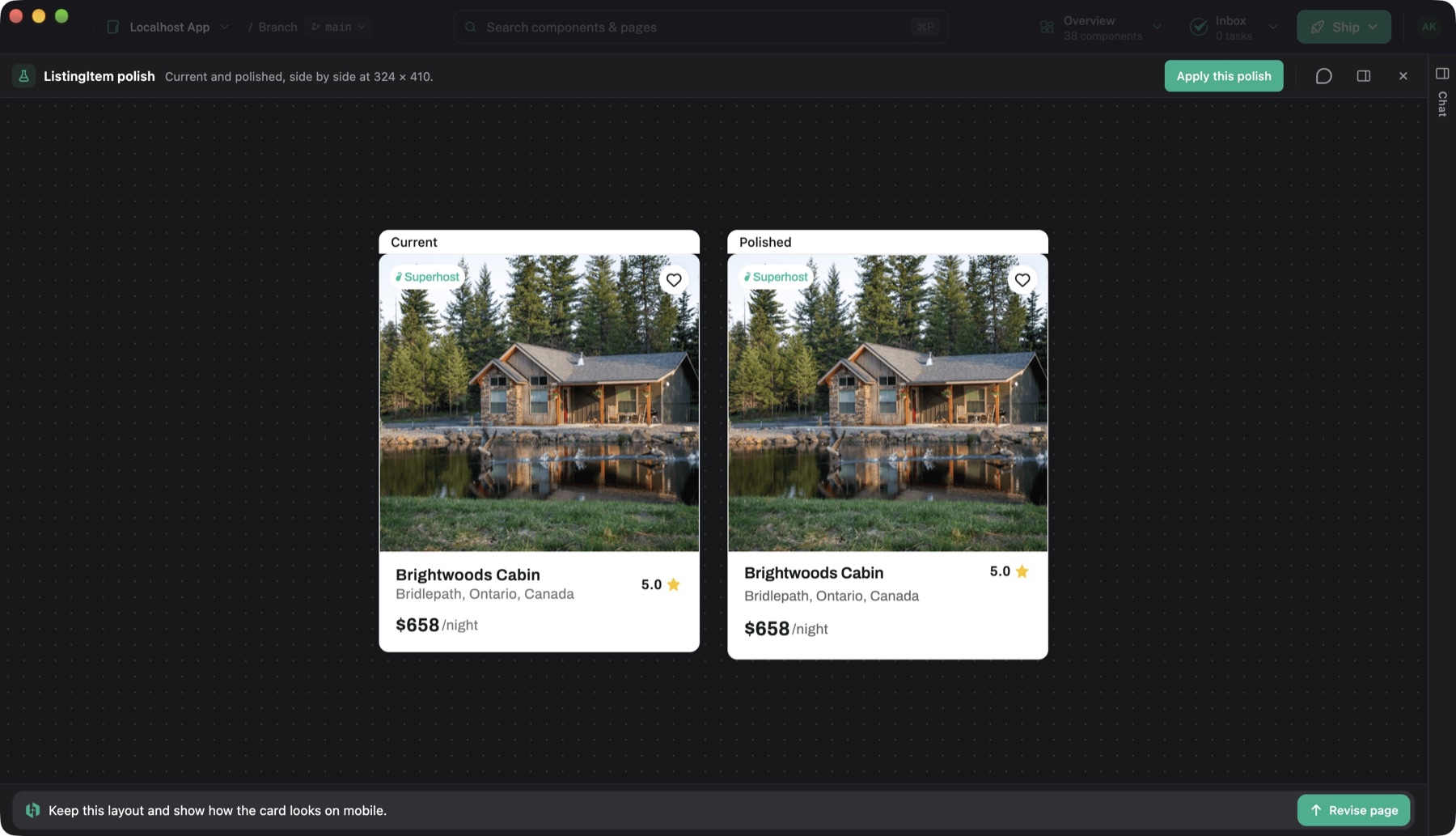
Choose Polish the look to improve spacing, alignment, typography, and colour while keeping the existing layout.
Replace with Figma
Choose Match a Figma design and link the exact frame to preview a replacement beside the current UI. Figma must be connected with an account that can access the file. Name any behaviour that should stay the same.
Match a screenshot
Attach a reference image and describe what should match, such as spacing, colours, or layout.
Show all states
Ask for hover, empty, loading, validation error, and success states. Short, long, or missing content can reveal layout issues.
Try a new feature
Preview a flow such as saving an item, viewing an empty list, and removing an item.
You can also ask to compare device sizes, container widths, or light and dark themes. To explore copy changes, ask for clearer labels or headings.
For plain HTML sites, Hexby uses pages as the subject instead of components.
You can also start an exploration in an existing Chat. Ask for something like “show me options” or “let me preview this before building.” If the assistant asks whether you want options or an edit, choosing options starts with a preview.
Try the preview
Starting from Explore opens a new chat thread. Starting in Chat keeps the exploration in that conversation. Follow progress in chat while the assistant prepares the preview. If you close it, select Open on the exploration card to return to it.
The controls depend on the request. For a design comparison, Compare shows a proposed design against Current, the existing UI. A feature preview can include a clickable prototype, screens, a flow diagram, and build notes. Available device, width, and zoom controls show the design at different sizes.
Use the prototype to check the flow, interactions, and states. Once you choose a direction, the assistant still needs to implement it in your app so you can test it there.
Refine what you see
Ask for changes in the chat beside the preview. When chat is collapsed, use Revise page beneath the preview. Each revision updates the exploration while leaving your project code unchanged.
I prefer the second direction's layout, with the error state shown on mobile.
To point out a specific detail, use the annotation button in the preview's title bar and pin your feedback to an element. Unsent pins go to the assistant with your next chat message. To send them separately, open the adjacent notes panel and select Send note or Send notes.
Selecting a note returns to the view and device size where you wrote it.
Reopen later
Explorations are saved locally and can be reopened from their chat cards after restarting Hexby.
Share an exploration
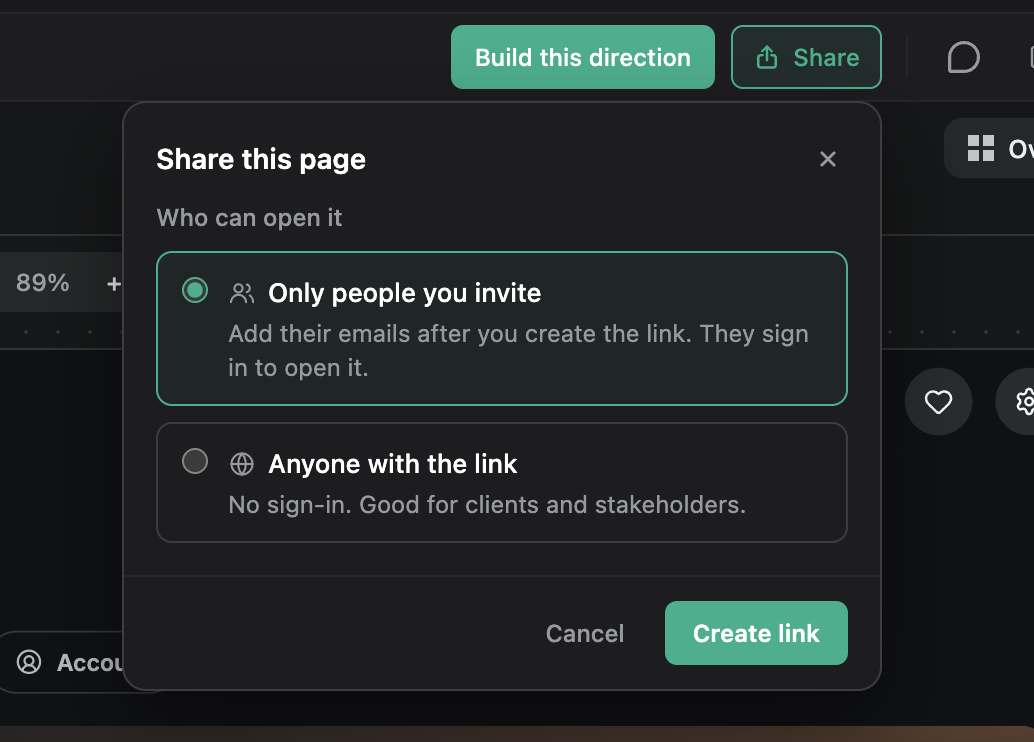
Use Share in the preview's title bar to create a link that opens the interactive preview in a browser. Sign in to Hexby if prompted, then choose who can open it:
- Only people you invite: invited people sign in to open the preview.
- Anyone with the link: anyone who has the URL can open it without signing in.
Select Create link. Hexby builds, checks, and uploads the shared preview. You can close the panel and keep working while it finishes. Once the link is ready, copy it from the sharing panel.
After creating an invite-only link, add people's email addresses and select Invite. Invited people receive an email and an Inbox entry with the link. The panel shows who has opened it. You can change who can open the link later, or use Remove access from an invited person's menu.
Sharing is not available for Angular projects yet.
Collect feedback
People can leave comments pinned to elements in the shared preview. Their comments also appear in Hexby, where you can reply and send feedback to the assistant for a revision. After reviewing the changes, update the shared link so others can try the revised preview.
Update or stop sharing
The shared link shows the version you last shared. Revisions in Hexby do not automatically change what others see. After revising the exploration, open Update link in the title bar and select Update shared link to publish the current preview at the same URL. Others keep seeing the previous version until the update is ready.
To disable the link, open the sharing panel and choose Stop sharing. Sharing the exploration again reactivates the same link with the current preview.
Build the chosen direction
When you're ready to build, select the action in the preview's title bar, such as Apply this polish. The label depends on the preview. Hexby sends your choice to the same chat and closes the popup so the assistant can implement it in your project.
Next step
Use Visual Review to review the implemented design and share it with your team.