
Product Tour
Product tour
Move from project overview to a reviewed UI change.
Hexby connects your project map, screens, components, source, assistant, and review flow in one workspace. Start broad, focus on one component, then review the change before sharing it.
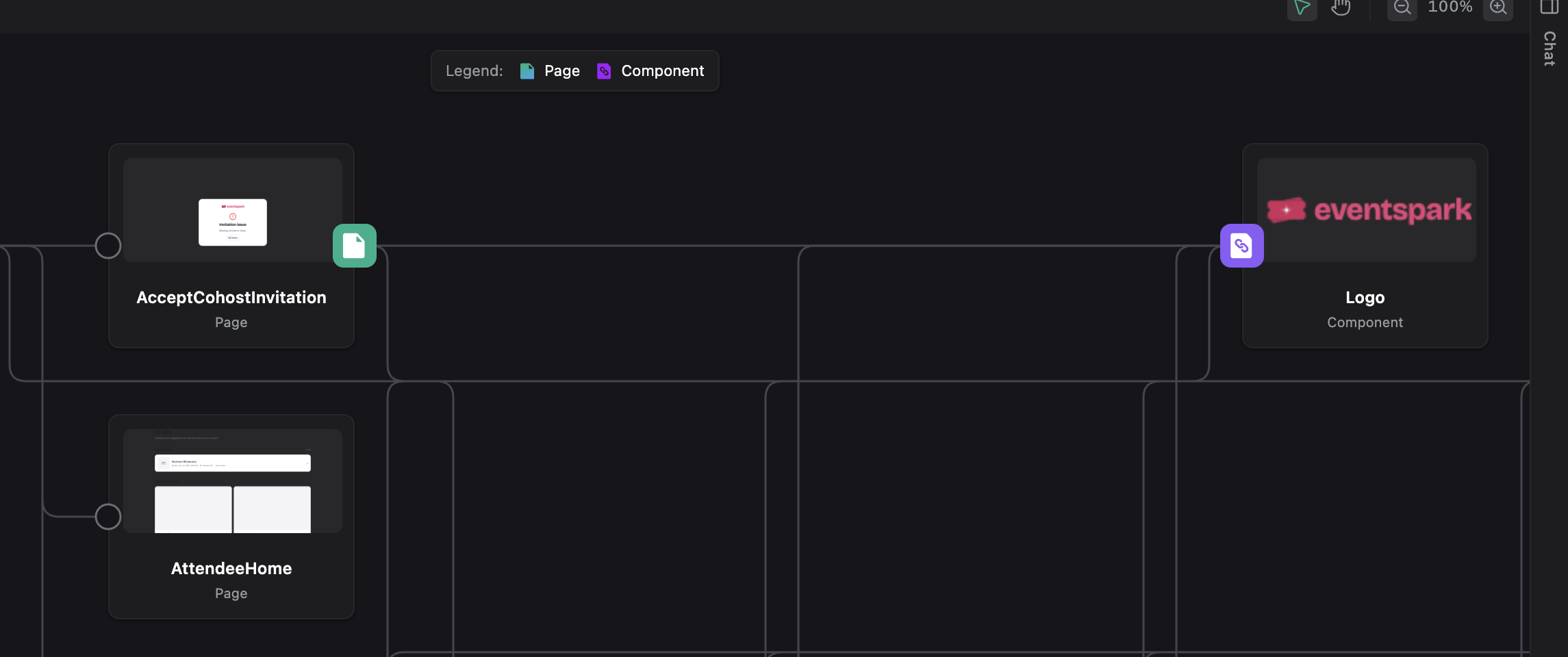
Choose a view
Use the workspace views in this order:
- Component Map — see how the project connects.
- Pages — understand one screen and its components.
- All Components — find a reusable piece of UI.
- Single Component View — inspect one component in isolation.
- Code View — read the source behind the UI.
- Preview App — check routes and full-app behavior.
Selection follows the component as you move between views. The canvas shows a preview or relationship map, while chat stays available for questions and changes.
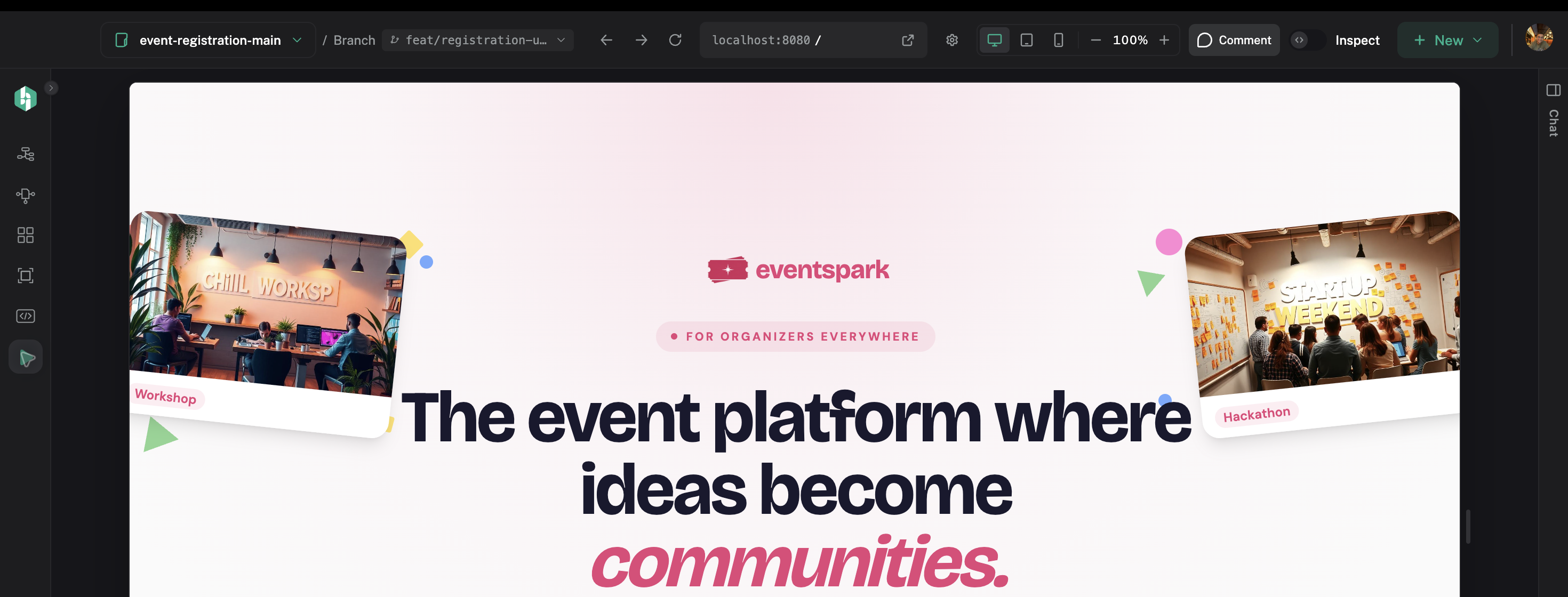
A typical session
- Open Component Map to understand the project shape.
- Use Pages to trace one screen, then All Components to find the part you want to inspect.
- Open Single Component View to inspect the component in isolation, prompt your assistant, and watch the preview update live.
- Use Code View to check the source, and Preview App when the question depends on a route or provider.
- Open Review Changes to compare the UI, source diff, and feedback.
- Use Share Changes when the result is ready for your team.
Review is the handoff point: confirm the visual result and source diff before sharing it.
Review Changes keeps the changed-component list, before/after modes, synced scrolling, and comments together so the team can discuss the exact result.
Keep context
The selected component stays connected across Component Map, Pages, All Components, Single Component View, Code View, Preview App, and chat. You can describe a problem once and keep working from the same context.
Next step
Start with Connect an AI agent, then follow Make and Review Changes for the full workflow.