
Ai Assistant
AI Assistant
Use a connected assistant to understand the UI, make changes, and review the result.
The AI Assistant is the chat-based way to work in Hexby. It can see the selected project, component, page, preview, and workspace context.
Hexby provides the visual context and workspace controls. The assistant uses its own account, tools, subscription, tokens, or credits. If you have not connected one yet, start with Connect an AI Agent.
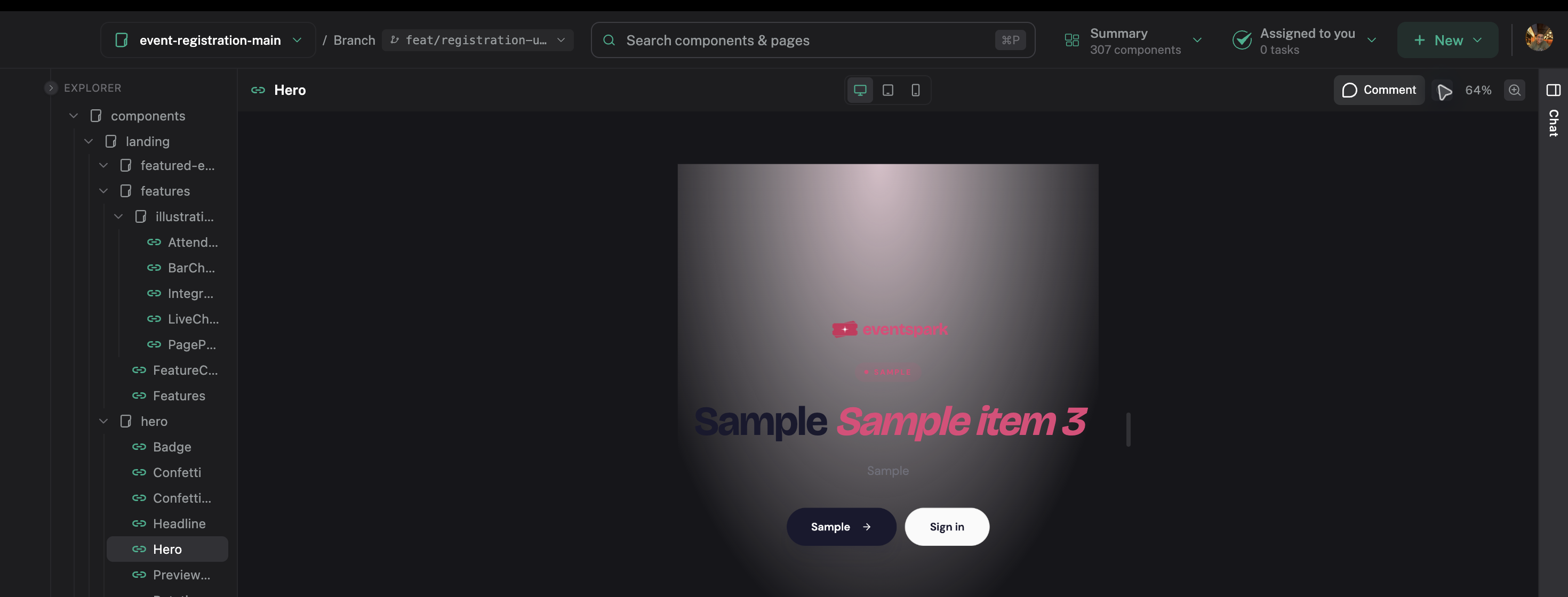
Start from the exact component you want the assistant to understand.
Ask in chat
Describe the outcome you want. Include:
- What looks wrong or unclear
- What should change
- What must stay the same
- The state, route, or screen size that matters
For example:
Make the empty state easier to scan. Keep the current layout, add one clear next action, and check the mobile spacing before showing me the diff.
Start from a selected component or page when possible. A focused request gives the assistant better context.
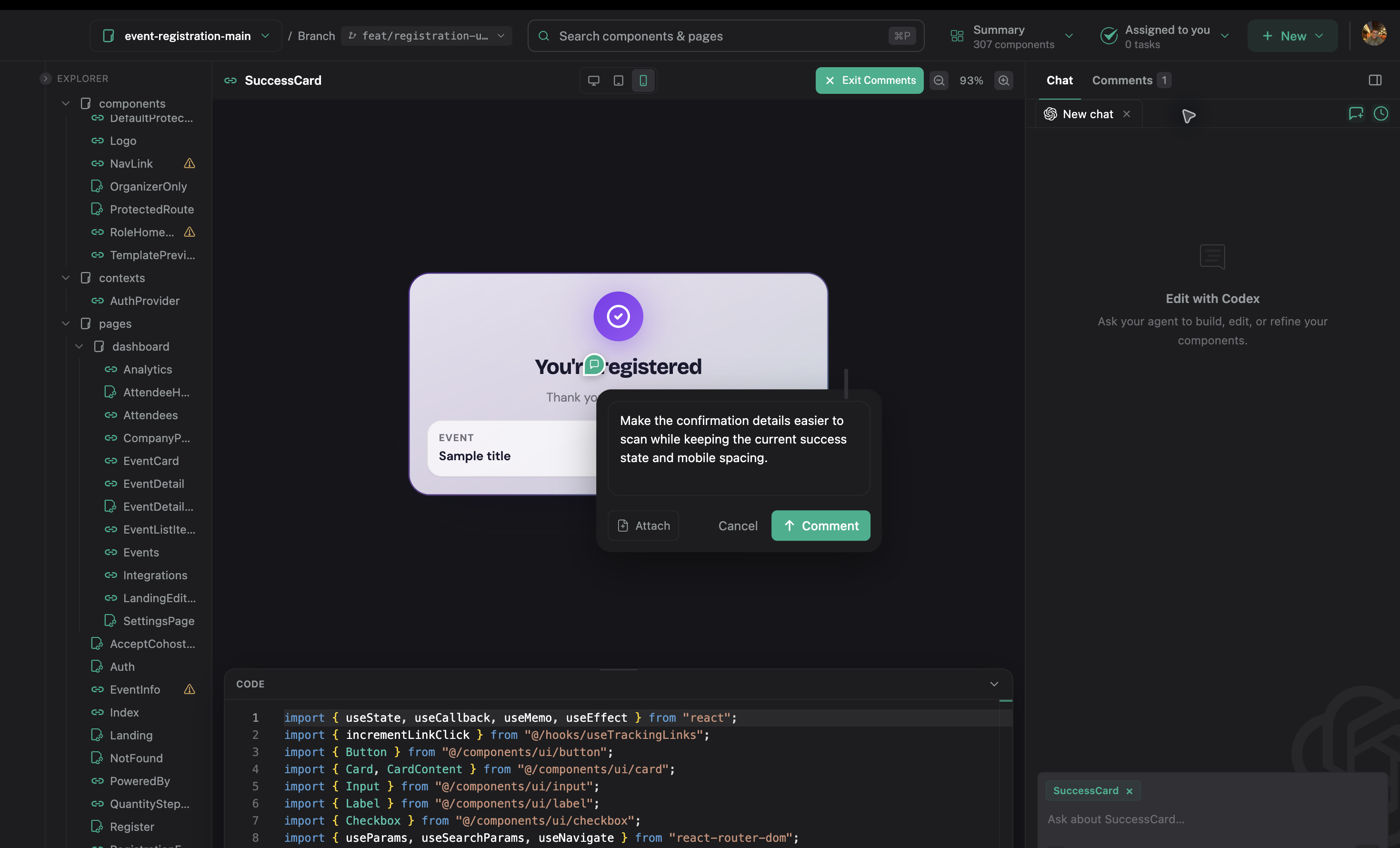
Write a focused comment on the preview, then keep the follow-up in chat.
What the assistant can do
In chat, the assistant can:
- Find and explain pages, components, and source
- Inspect previews, states, routes, and runtime messages
- Move between workspace views
- Suggest or make a source change when you ask
- Compare the result with the previous version
If a preview is missing, click Fix with agent and keep the investigation in chat. If it needs safe example data, check AI enrichment.
Follow the work
- Ask the assistant to inspect the problem.
- Check the updated preview and relevant states.
- Review the changed files in Code View.
- Use Review Changes before you keep the result.
Ask for another pass when the result is close but not ready. The assistant’s answer is not approval; the project source and your review are the source of truth.
Preview-only actions
Some controls change only preview data or presentation. They reset when the preview reloads and do not change the project source. Use Apply changes or send a focused chat request when you want a real change, then review the diff.
Permissions and project rules
Read each permission request before accepting it. Inspection and source edits have different consequences.
Add durable rules to Project Guidelines so the assistant can follow them in future requests.
Usage
AI requests use the connected assistant’s own subscription or credits. Hexby does not provide unlimited model usage. An assistant may also need runtime data or access that is not available in the current workspace.
Next step
Use Make and Review Changes for the full visual-to-code workflow.