
Getting Started
Quickstart
Go from existing code to a reviewed UI change in Hexby.
Hexby turns your existing codebase into a visual workspace. Explore the UI, try a direction, ask your assistant to change it, and review the result before sharing it.
Before you start, install the project dependencies, Git, and a supported coding assistant. You’ll only need GitHub access when you share a change.
1. Install Hexby and open a project
Download Hexby, open the app, and sign in. Then choose the project folder you want to inspect.
In the project picker, choose the path that matches your project:
Local project
Open a local project
Open the folder that contains the project root and its dependencies.
- 01Find the project root
Choose the folder that contains
package.jsonand the lockfile. - 02Open it in Hexby
Select
New → Open project, or drag the folder into the project picker. - 03Let Hexby map the UI
Wait for the workspace to load, then start exploring Pages and Components.
2. Let Hexby map your UI
Hexby analyzes the code without changing it, then maps Component Map, Pages, All Components, their relationships, and the previews it can render. The workspace can open before every preview is ready, so you can explore while analysis runs.
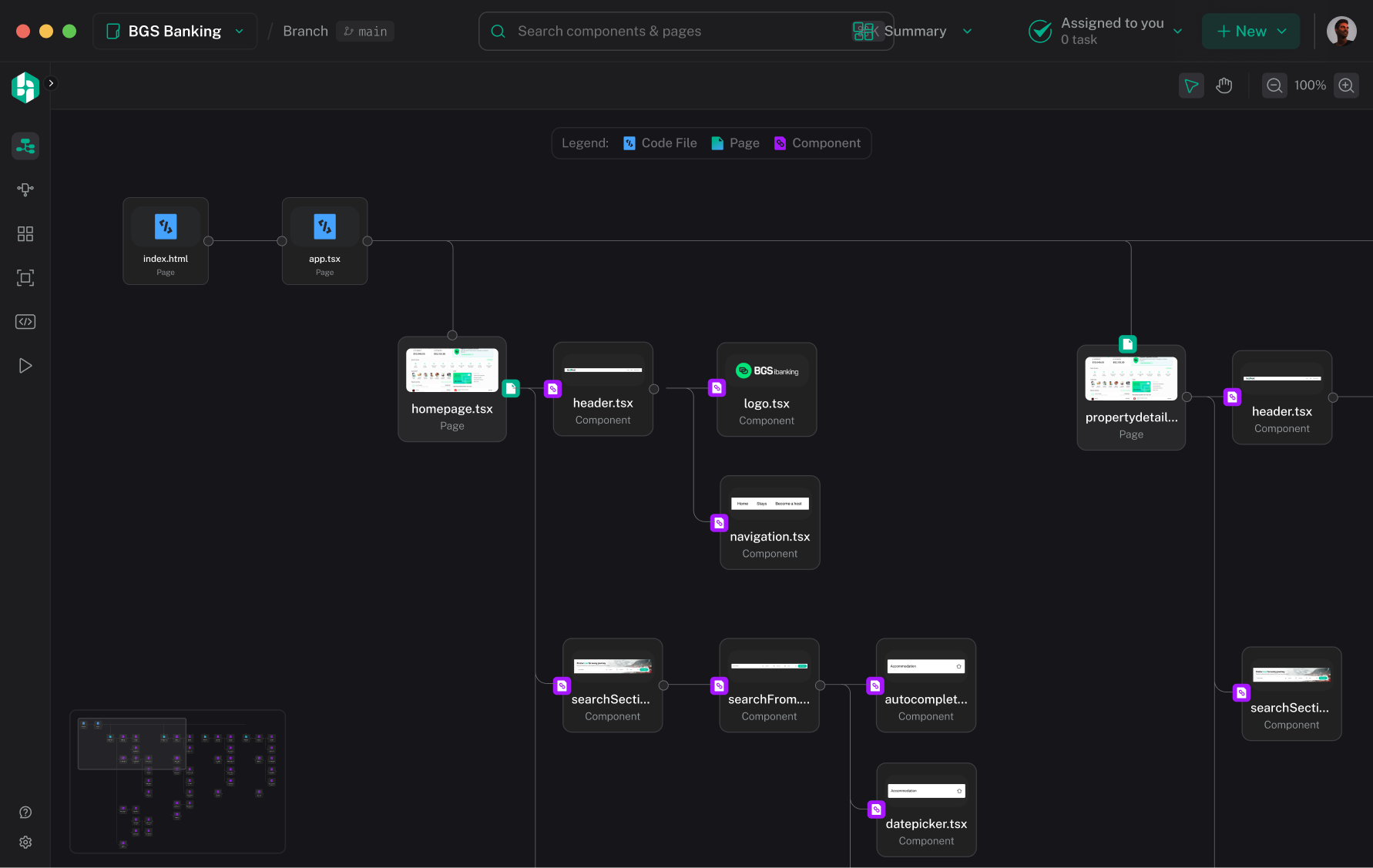
If a preview is blocked, read its message and follow the suggested action. Use AI enrichment for safe preview data, or continue with another component. See First Analysis for progress states and common setup issues.
3. Find a component and explore directions
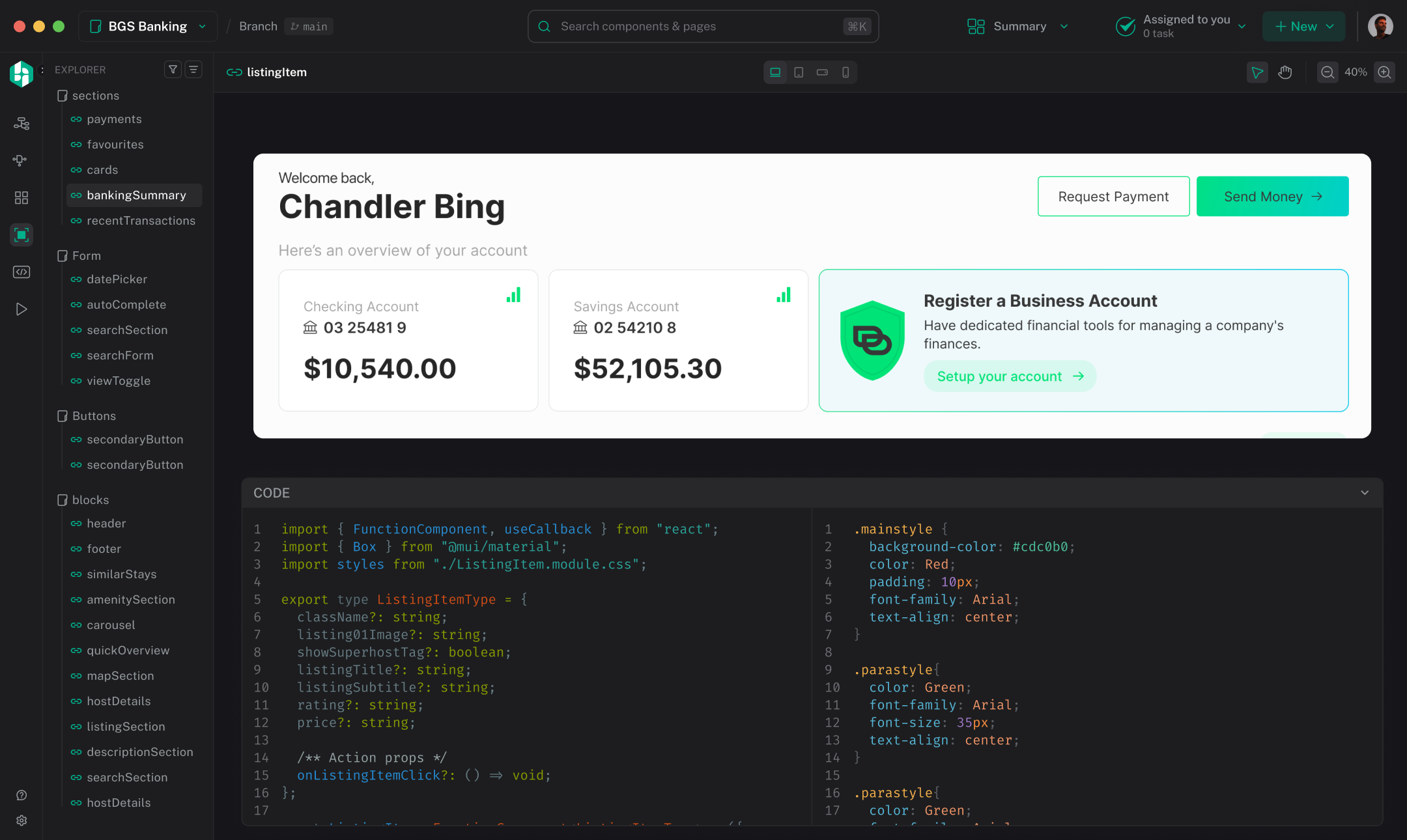
Start with Component Map to see relationships, Pages to understand a screen, then All Components to find a reusable piece. Open Single Component View to inspect it in isolation before changing a shared component.
Use the component action menu to explore Show hexby alternatives, or prompt your assistant directly. Inspect the component in isolation and watch the preview update in real time as you refine the result. Alternatives are exploratory; they do not change project source.
4. Ask your assistant to implement one direction
Connect an installed coding assistant—Cursor, Claude Code, Codex, Gemini, or Copilot—select the component or chosen direction, and describe the result in plain language. Hexby supplies the visual context; the assistant you already use reads and changes the project source. You can keep the component isolated while you work, then check the full page when the change is ready.
Start with one focused request
Include what feels wrong, what should change, what must stay the same, and the state, route, or viewport that matters.
Make the empty state easier to scan. Keep the current layout, add a clear next action, and preserve the mobile spacing.

Choose the least-permissive permission that supports the request, and review the assistant’s proposed scope before allowing a source edit. If the question depends on routing or application providers, check it in Preview App.
Preview-only edits and AI enrichment are inspection aids; they do not change project source until you apply a change or ask the assistant to edit it.
Use Connect an AI agent for connection options and permission details.
5. Review the real UI with your team
When the assistant finishes, check the updated preview, then open Review Changes from the workspace header (New → Open the review). Review the changed-file list and source diff, then compare the same component or page before and after at the relevant state, route, and viewport.
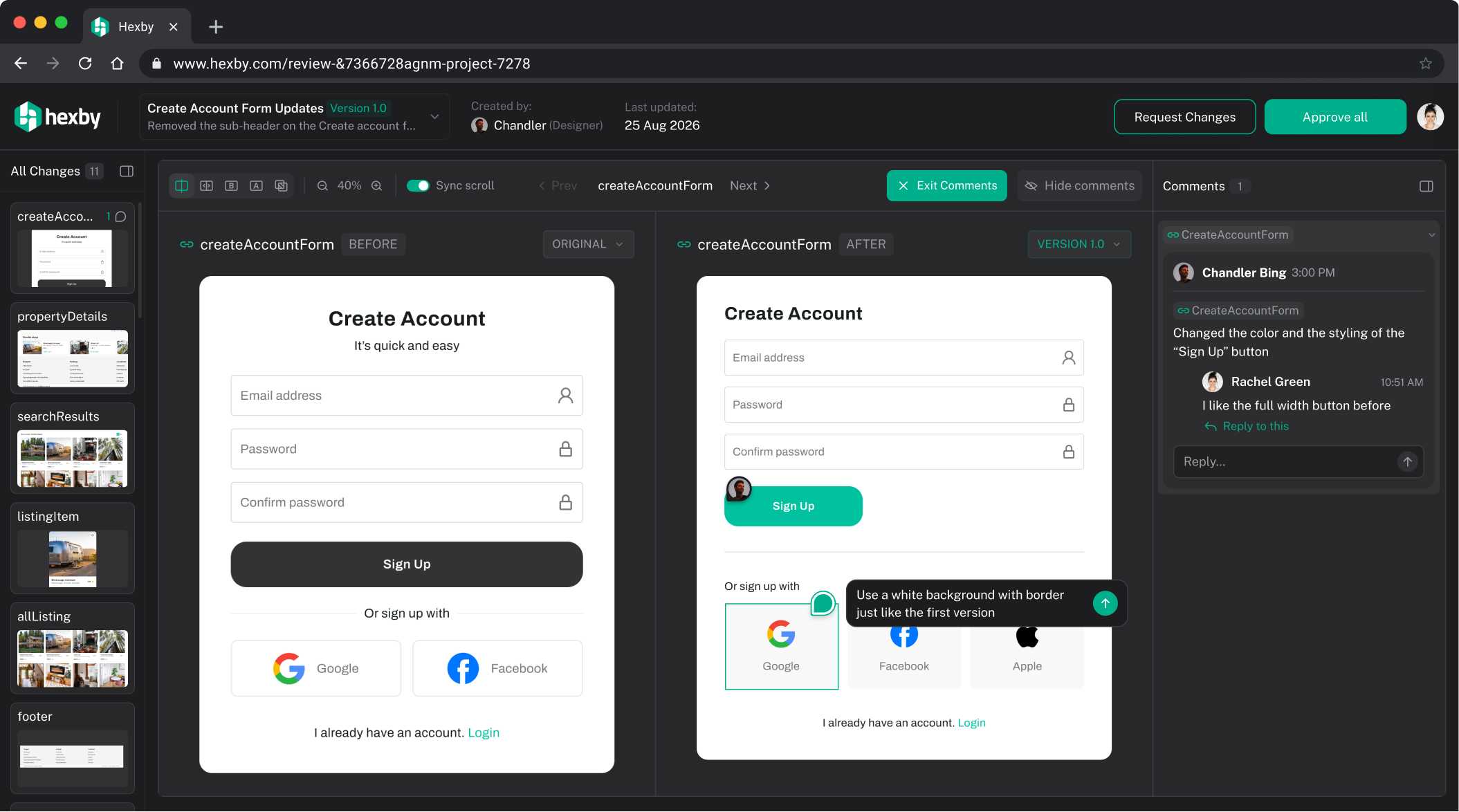
Check layout, content, interaction, responsive behavior, and the states that matter to the request. Leave a comment or ask for one narrow refinement when the result is close, then review the new result using the same comparison.
Share the review link with teammates. Reviewers can open it in a browser without installing Hexby, checking out the branch, or running the project locally.
6. Hand off the approved change
When the review is approved, choose Hand off to developers. If it is already handed off, use New → Open pull request and review the summary, repository, branch, and changed files before continuing in GitHub. The direct path may appear as Submit changes.
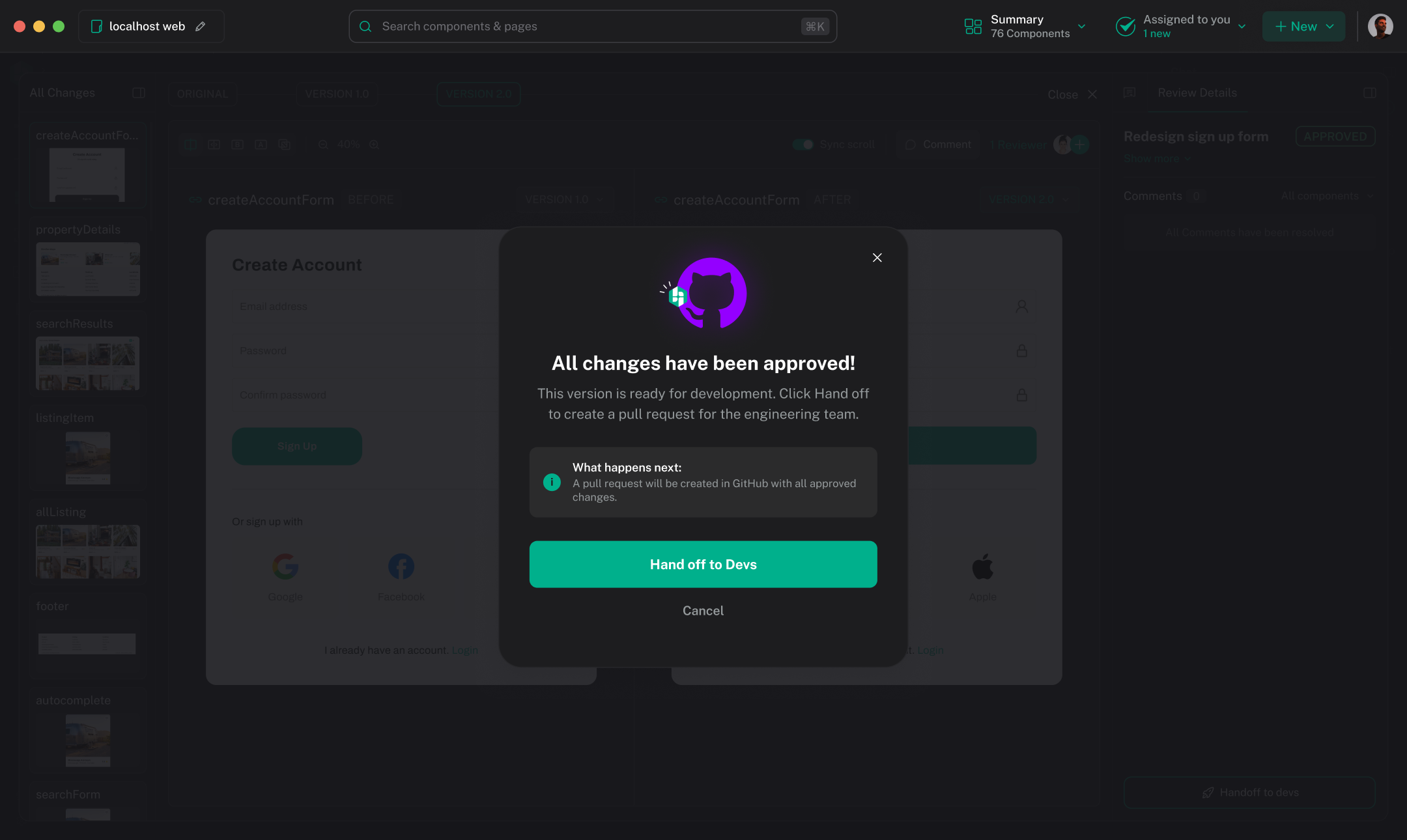
Hexby prepares the commit and pull request. Your team still reviews and merges the work in GitHub; Hexby does not approve or merge it for you.
For the full workflow, see Make and Review Changes, Review Changes, and Share Changes.
What's next
For Git requirements, shortcuts, statuses, supported project types, and common terms, use Reference.