
 See how it works


Explore ideas before you build them.
Compare directions and work through possibilities before committing to implementation.
Visualise components from your codebase, explore design alternatives, and ask your coding agent to try new ideas. Iterate on your UI visually, without starting from scratch.
One card. Three new directions.
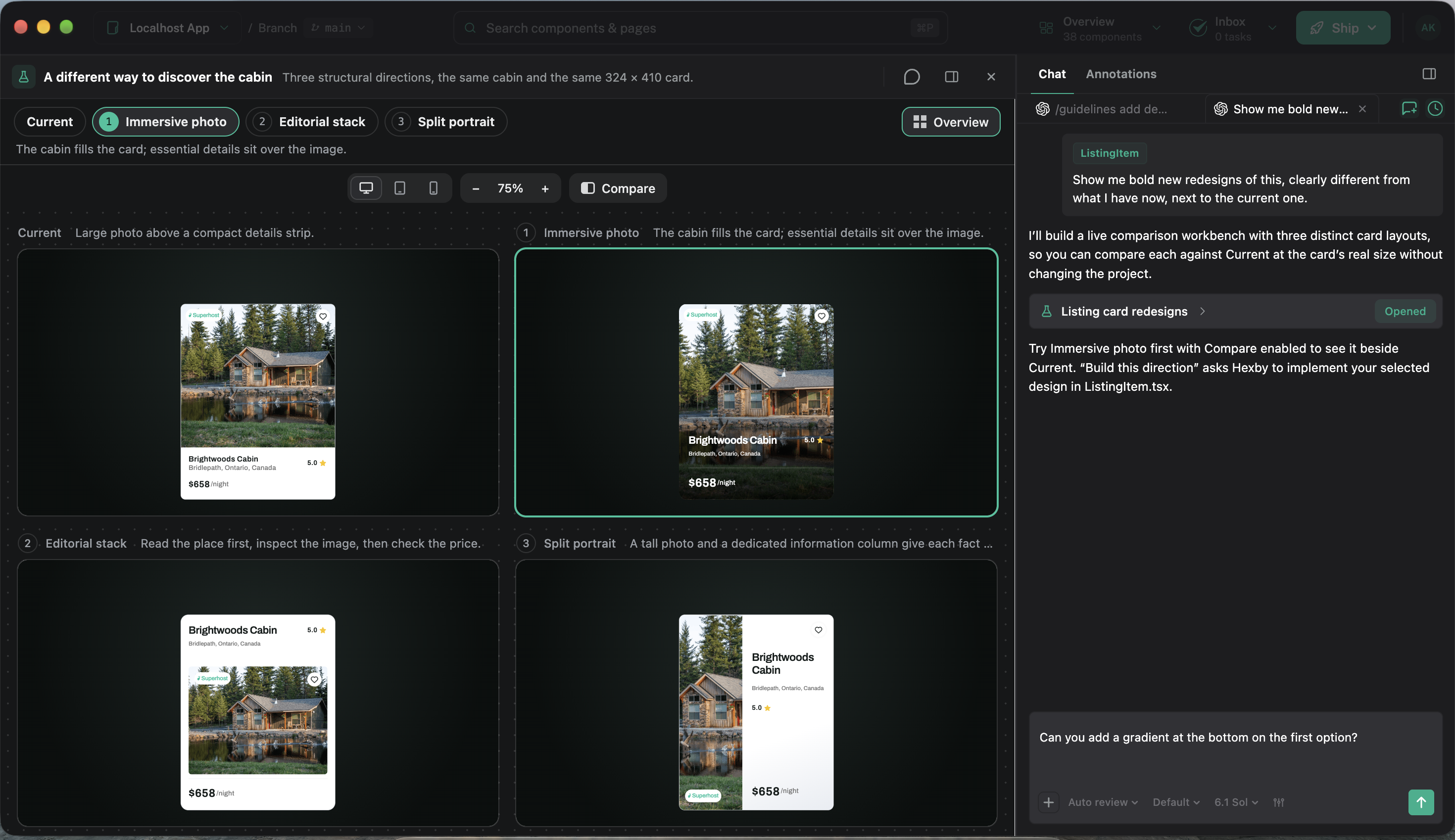
Your existing component. A new starting point.
01 / 07Your components. Your product context. Room to explore.
Explore different directions
Compare directions and work through possibilities before committing to implementation.

Explore with your existing components, styles, and product context.

Share a review board so teammates can comment, request changes, and approve a direction.
Six ways to explore
Your codebase is the starting point. Explore what it could become.
01 / EXPLORE WITH HEXBY
One screen can go in many directions. Turn your existing UI into a design canvas and explore different layouts, visual styles, and ways to organize information. Compare options side by side, then refine the ideas that work best.
“Show me three directions for this dashboard: one focused on key metrics, one on recent activity, and one on actions to take next.”
ϟ Superhost♡$658 /night
ϟ Superhost♡$658 /night
ϟ Superhost♡$658 /night
ϟ Superhost♡$658 /night
Taxes calculated at checkoutView details ›02 / EXPLORE WITH HEXBY
Refine spacing, typography, alignment, and visual hierarchy using your product’s existing components and styles. Explore a broader polish with your agent, then fine-tune individual details with Design Mode’s visual controls.
“Polish this settings page. Improve the spacing, make the sections easier to scan, and give the primary action more emphasis.”
ϟ Superhost♡$658 /night
ϟ Superhost♡$658 /night
03 / EXPLORE WITH HEXBY
Bring the intended design into the context of your working product. Use a Figma frame as a reference to explore changes to layout, typography, colors, and component details.
Review the result in an interactive preview and refine the differences before implementation.
“Match this screen to the linked Figma frame. Focus on the layout, typography, and spacing, using our existing components where they fit.”
ϟ Superhost♡$658 /night
ϟ Superhost♡$658 /night
04 / EXPLORE WITH HEXBY
Turn a visual reference into something you can explore in your own product. Start with a screenshot and describe what caught your eye, whether it’s the page structure, a card layout, or the overall style.
Adapt those details to your content and components.
“Use this screenshot as a reference for our pricing page. Try its card layout and visual hierarchy with our plans, content, and brand colors.”
ϟ Superhost♡$658 /night
ϟ Superhost♡$658 /night
05 / EXPLORE WITH HEXBY
See how a new capability could fit before committing to the details. Explore where it belongs, how people discover it, and what the interaction feels like alongside the rest of your product.
Refine the idea in an interactive preview before moving into implementation.
“Try adding a team activity panel to this dashboard. Show a compact version in the sidebar and an expanded view with filters.”
ϟ Superhost♡$658 /night
06 / EXPLORE WITH HEXBY
Design for the moments beyond a screen’s default view. Explore loading, empty, error, and success states with content that helps people understand what’s happening and what to do next.
Compare each state in the context of the same screen.
“Show the empty, loading, and error states for this page. Include a useful next step for the empty state and a retry action for the error.”
ϟ Superhost♡$658 /night
Prompt
Select something on the canvas and it comes along as context, so the agent knows which part of your UI you mean. Paste an image, run a slash command, or dictate. Use your agent for broader changes, then check the updated UI and code before sharing a review.
See how to work with your agent.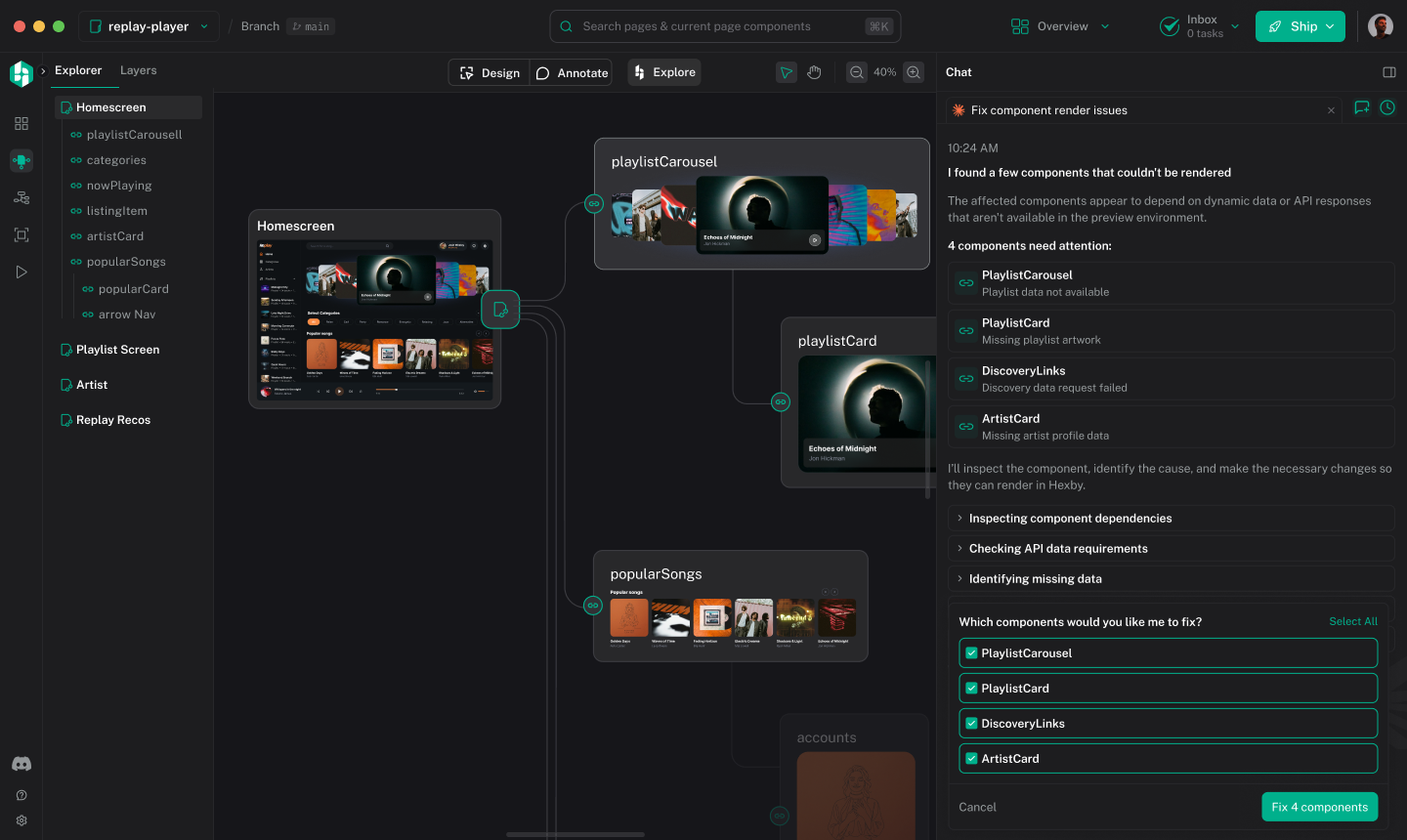
How it works
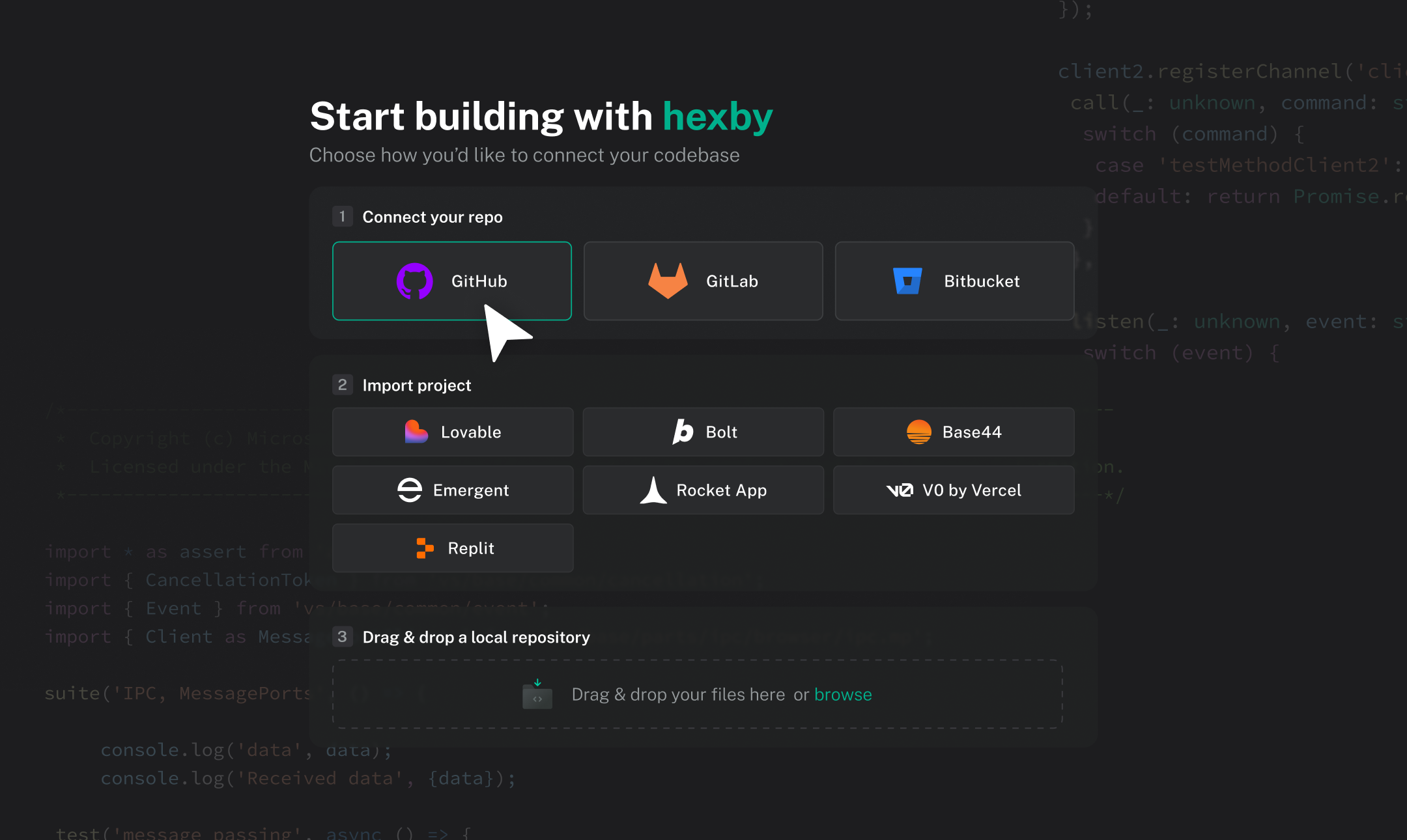
Bring the codebase into Hexby, explore its UI, work with your agent, then review the changes.
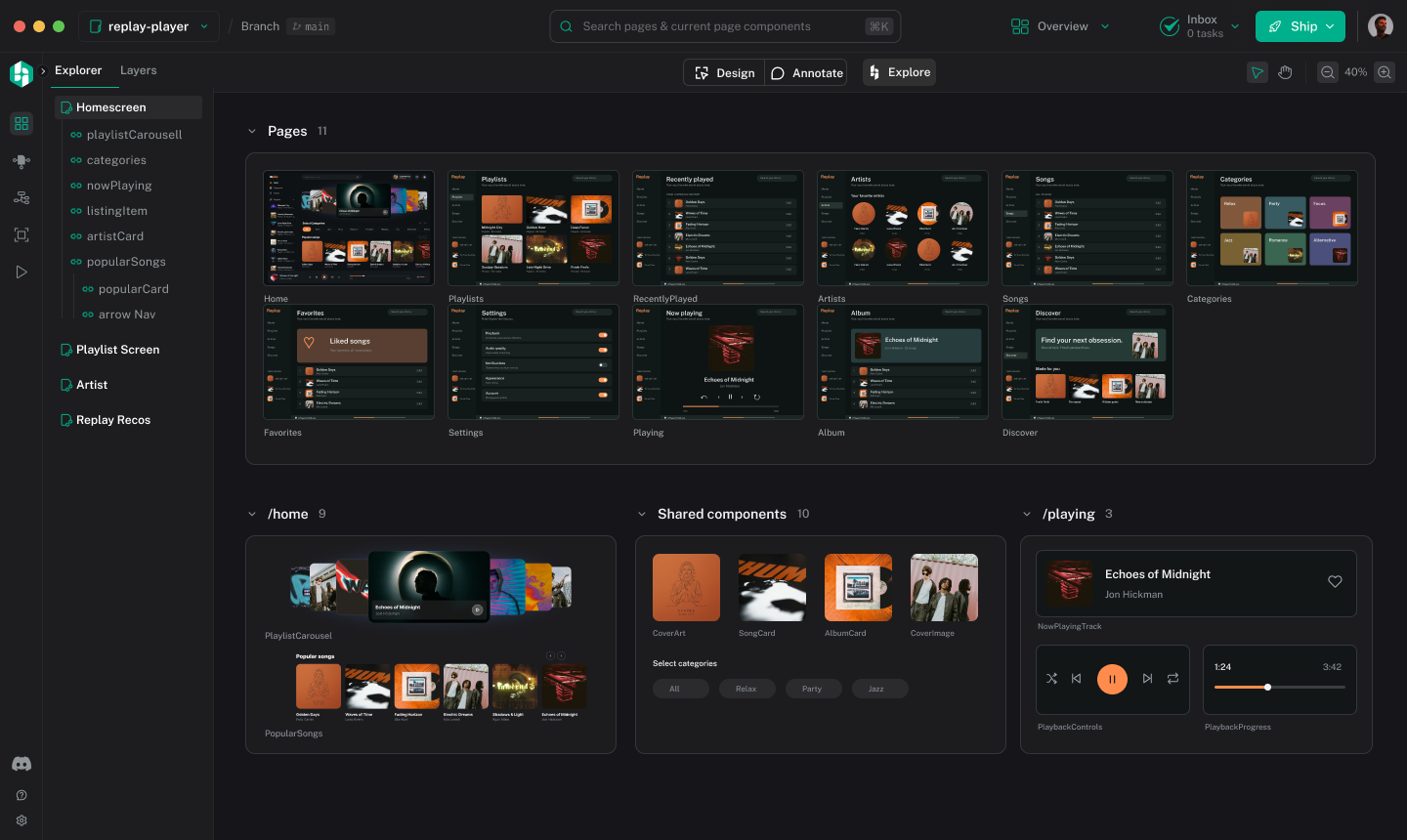
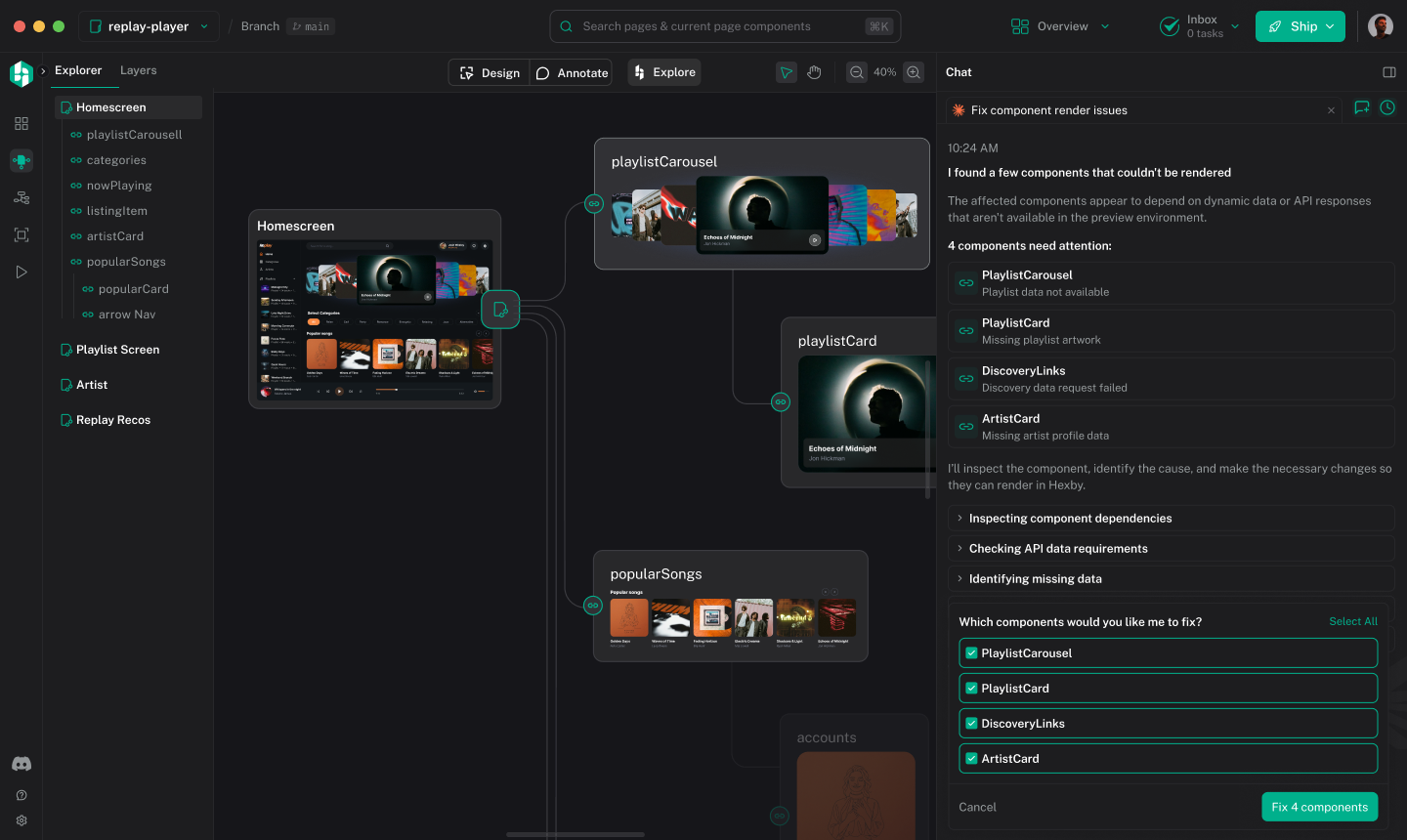
Browse screens and components, and inspect the pieces relevant to your task.
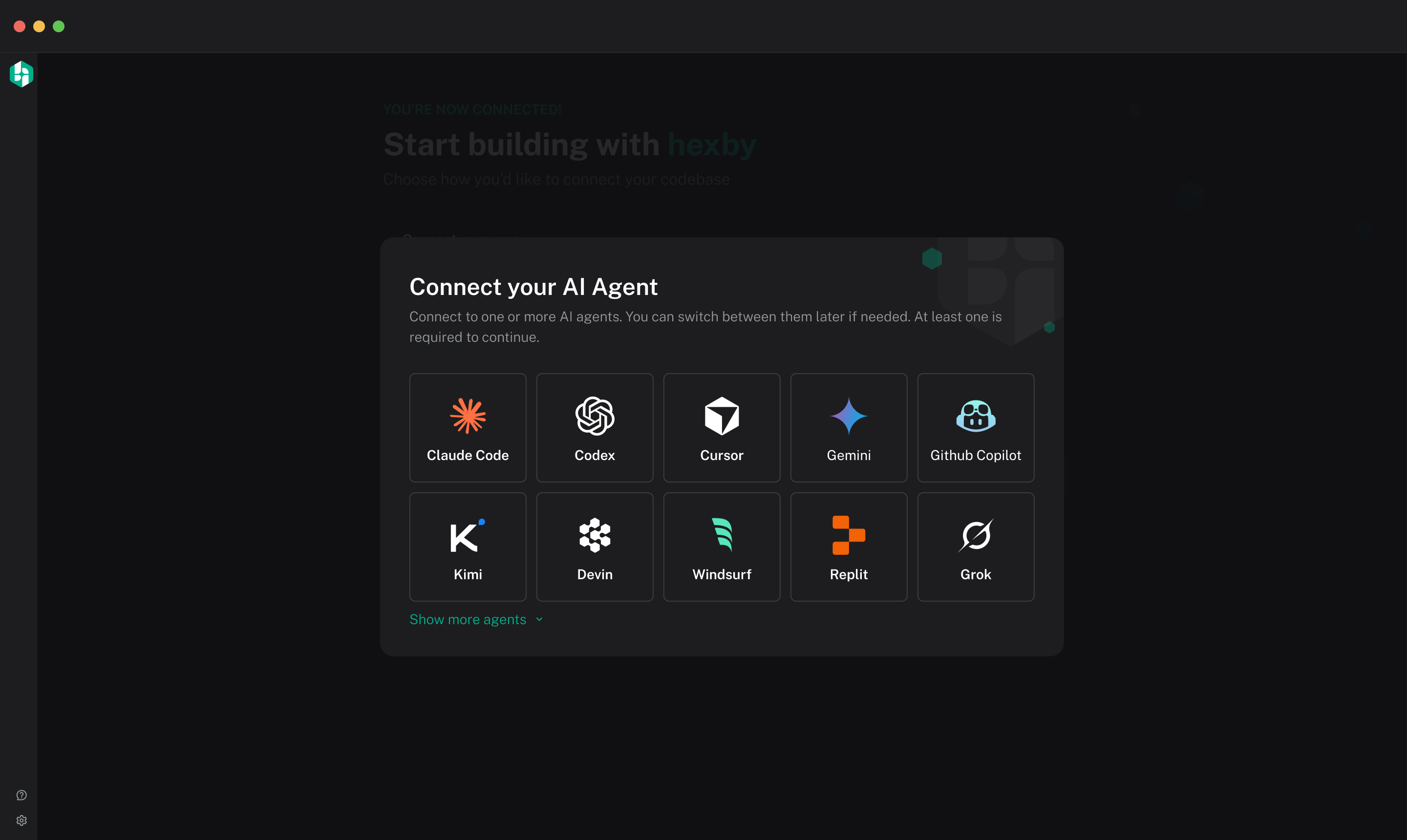
Use Claude Code, Codex, Cursor and other preferred agents.
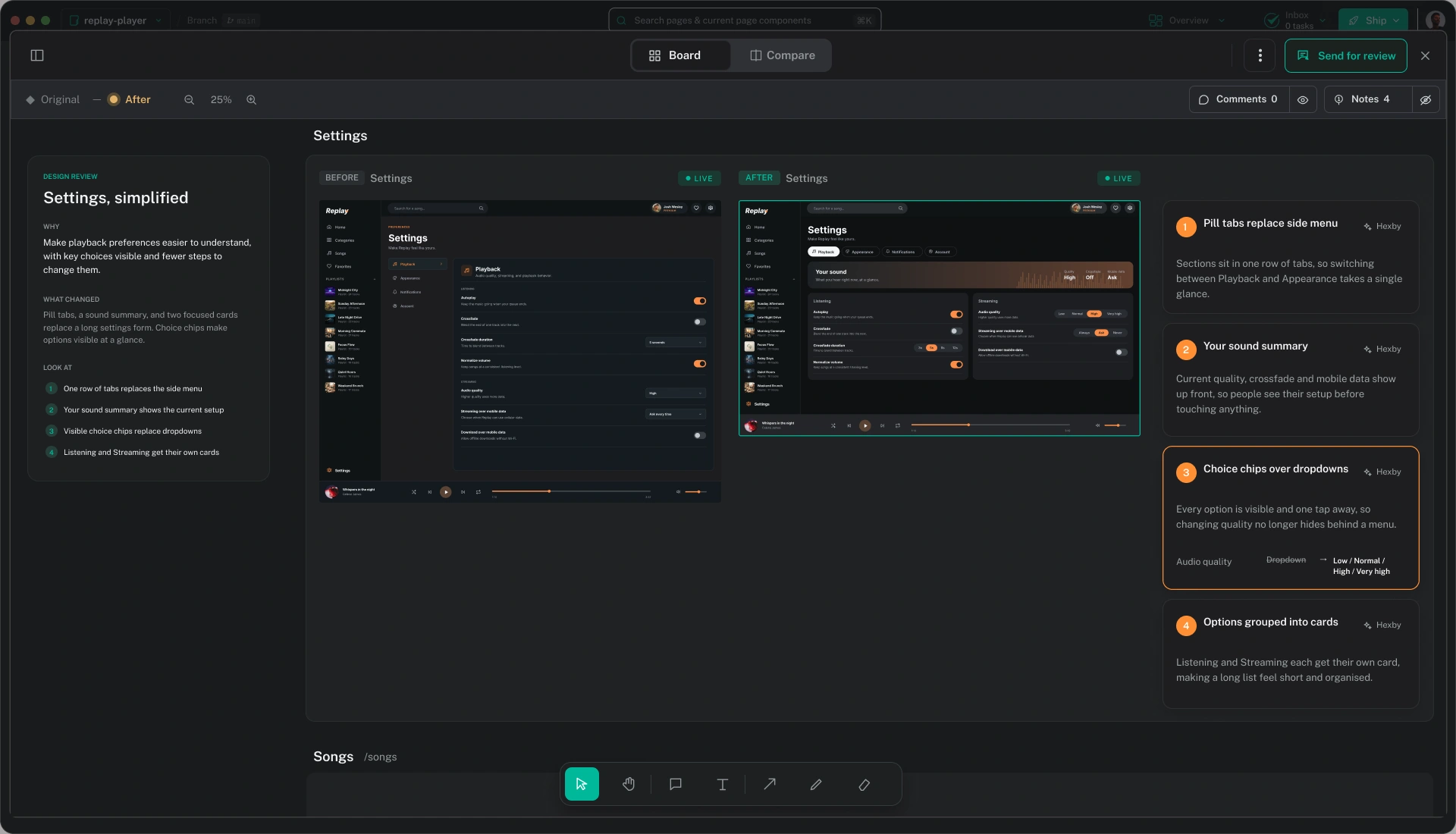
Share a board with before-and-after screens, a brief, and change notes. Collect feedback and approval, then create a GitHub pull request for developer review.
Frequently Asked Questions
Explore how Hexby fits into your existing product and development workflow.
Hexby is a visual design workspace for teams whose product UIs live in code. It turns an existing frontend codebase into a visual canvas where you can explore screens and components, try design alternatives, and refine interfaces using your existing AI coding agents. Unlike a traditional design-first workflow, Hexby lets you work with the UI that already exists in your codebase, without having to recreate it in a separate design file. You can watch a demo of the Hexby workspace here.
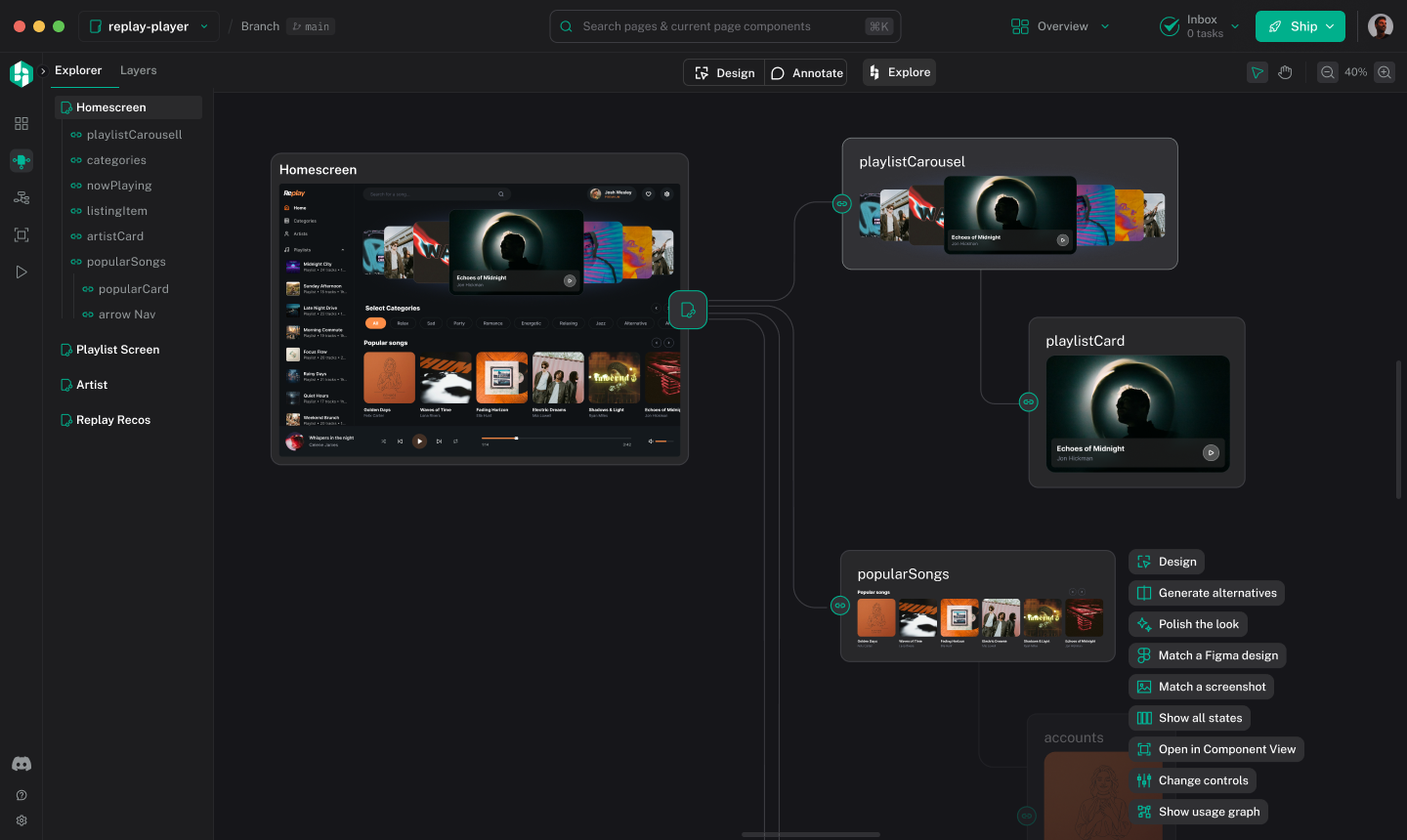
Hexby turns your existing frontend codebase into a visual workspace for exploring your application's pages and components. Instead of navigating source files to understand the UI, you can inspect rendered interfaces, explore component relationships and identify areas to improve. This helps designers, product managers and developers understand and work on coded UIs visually. You can explore the Hexby workspace in the product tour here.
Hexby brings a visual design workflow to products built directly in code by AI coding agents. Connect your project, explore the UI on a visual canvas, experiment with layouts and components, and use your existing coding agent to implement changes. You can move between visual exploration and code implementation without first recreating your application in a separate design tool. You can explore different design directions here.
Hexby helps you refine AI-generated applications after the initial build. Bring your project into a visual workspace, explore alternative layouts, improve components and polish the interface using your existing AI coding agent. Instead of rebuilding the application from scratch, you can iterate on the UI of the product you have already created. You can learn how to open your existing project here.
Yes. Hexby brings visual UI exploration and iteration into your existing AI coding workflow. Work with your application's screens and components, identify the changes you want to make, and use your connected coding agent to implement them in code. You can continue using your existing agent and its subscription rather than switching to a separate AI coding agent provided by Hexby. You can find the AI assistant integration guide here.
Hexby lets you explore alternative UI directions using your existing application as the starting point. Experiment with layouts, screens and components, review visual changes against the current interface, and refine your preferred direction with your AI coding agent. This helps teams evaluate design options before deciding which changes to implement in their codebase. You can learn how to explore and compare design ideas here.
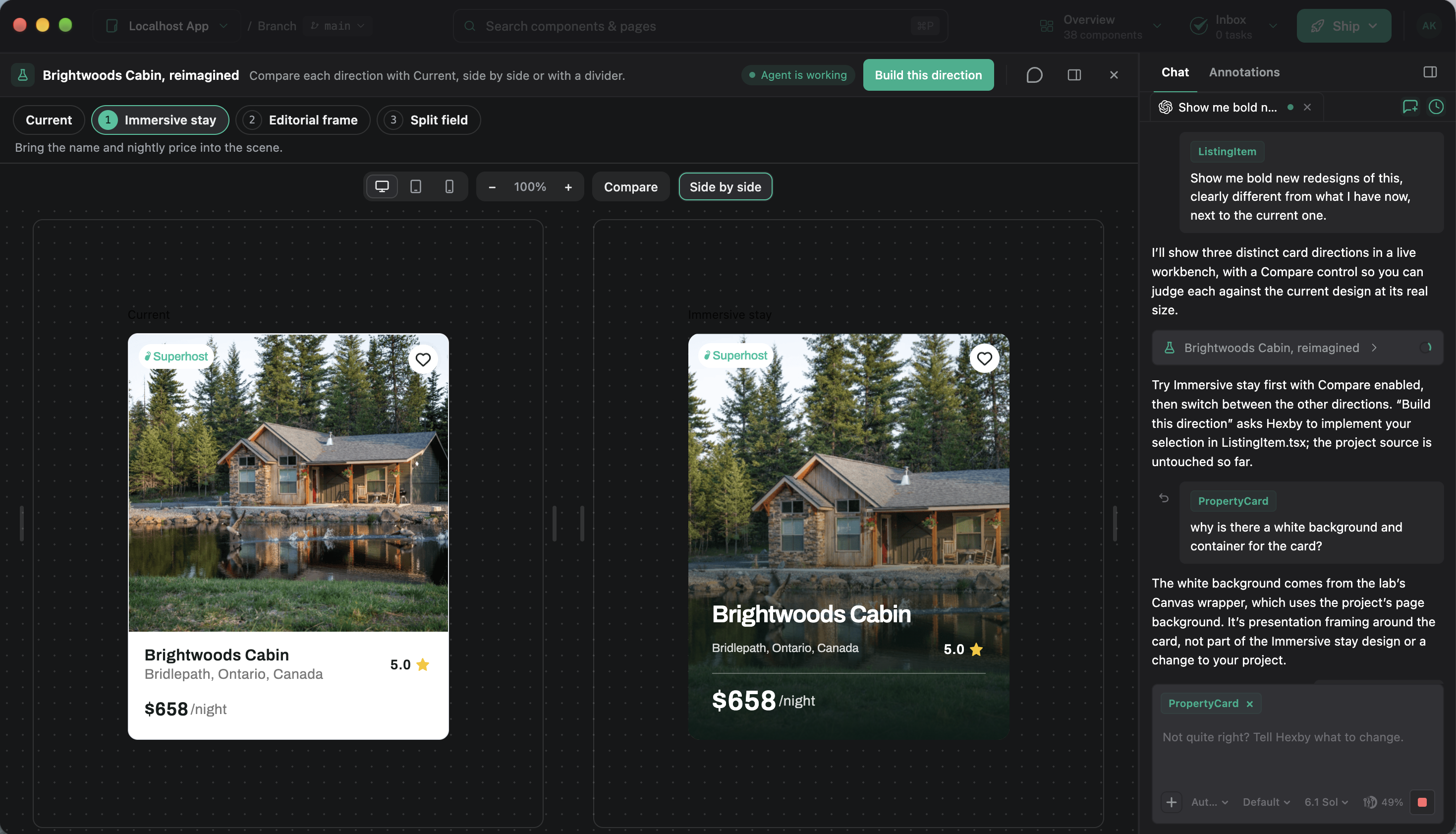
Hexby gives designers and product managers a visual workspace for understanding and refining an existing application's UI. They can explore screens and components, communicate desired changes and work with an AI coding agent to implement improvements. Teams can review visual changes together and hand approved work back to developers through their existing development workflow. You can learn about visual review and developer handoff here.
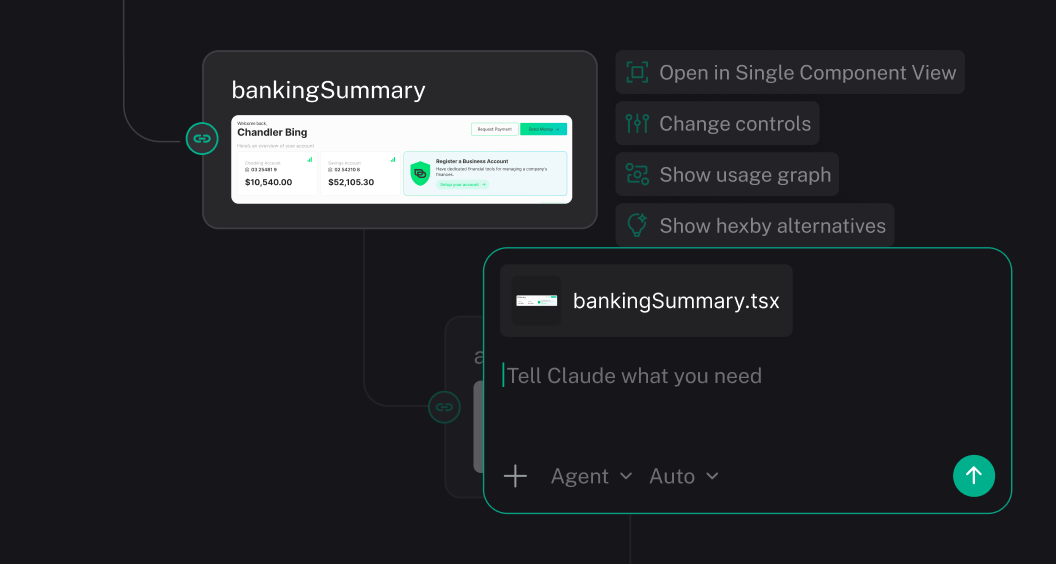
Yes. Hexby creates a visual workspace from your existing frontend project so you can explore the UI that has already been implemented. You can inspect pages and components, understand how the interface is structured, and iterate on the existing product using your AI coding agent. Your codebase remains the source of truth, rather than requiring you to manually recreate each screen in a separate design file. You can find project requirements and setup instructions here.
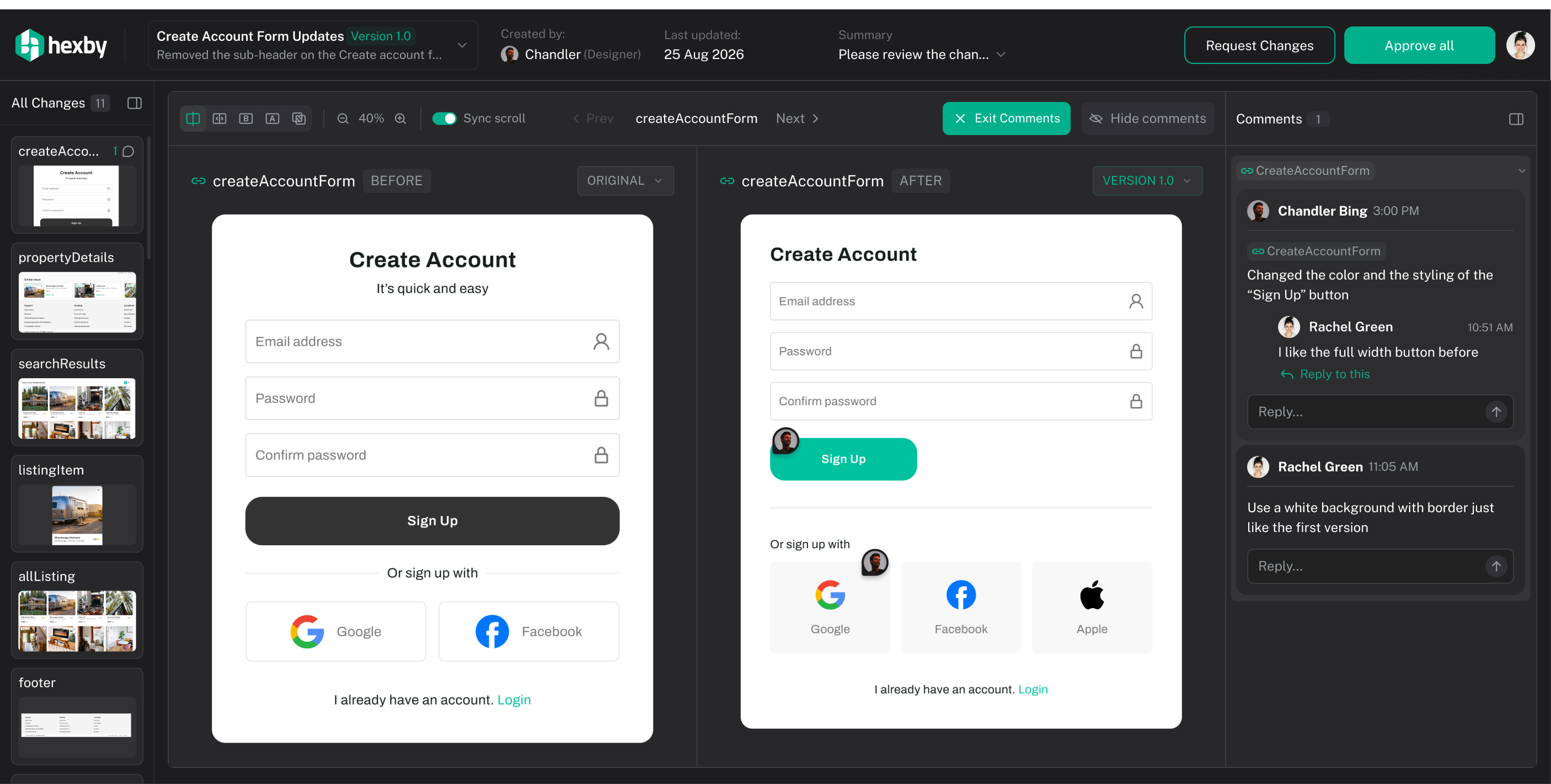
Hexby helps you explore the pages and components that make up your application, making it easier to understand how shared UI elements fit into the product. You can identify areas for refinement, explore changes to reusable components and work with your AI coding agent to implement improvements across the interface. This supports more consistent UI iteration within your existing codebase. You can learn how to give your AI agent design guidelines for consistent UI changes here.
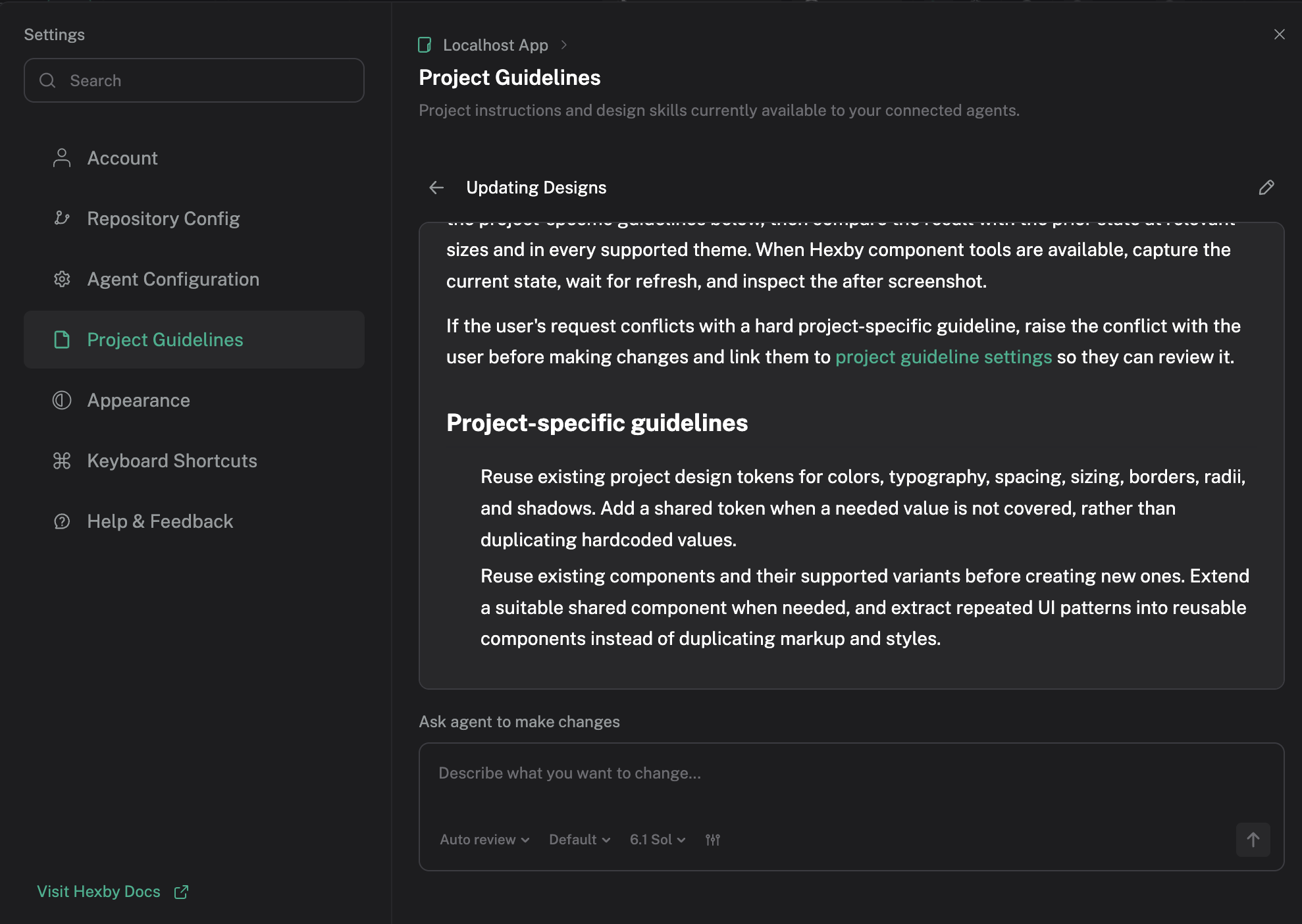
Hexby gives teams a visual workspace for reviewing UI changes before they become part of the main product. You can compare the updated interface with the existing version, inspect proposed changes and collaborate with teammates on the result. When changes are ready, they can be handed back through your supported repository workflow for developer review and merging. You can learn how to review UI changes and hand them off for merging here.
Your next direction starts here
See the possibilities in your real product. Find a direction your team is ready to build.