
Alternative Components
Alternative Components
Explore and refine directions for a component before changing project source.
Use Alternative Components when you want to explore a different direction before committing to a project change. Alternatives are isolated concepts shown alongside the current component.
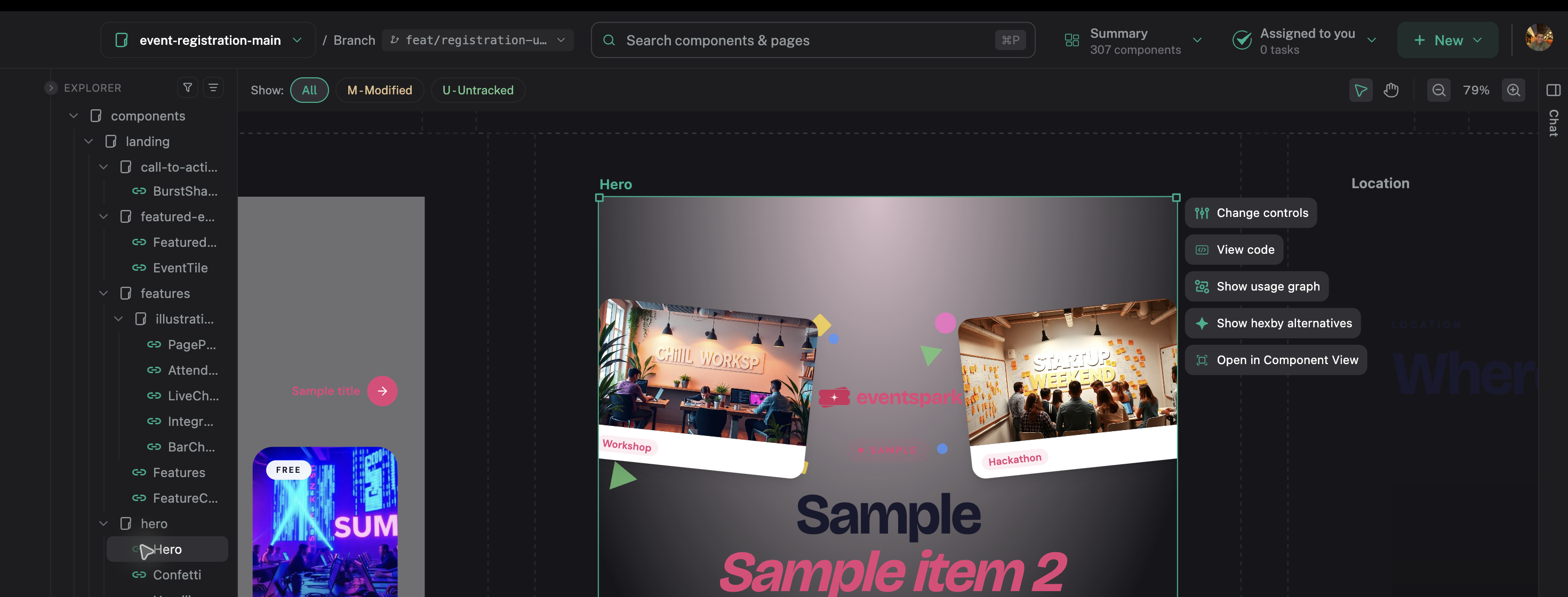
Start an exploration from the selected component’s actions.
Start an exploration
- Select the component you want to reconsider.
- Open its component actions.
- Choose Show hexby alternatives.
- Describe what you want to improve in chat.
Start with the problem, not a visual style. For example:
Make the primary action easier to find, reduce visual noise, and keep the current content and mobile spacing.
Explore in context
You can:
- Prompt for a new direction
- See the preview update in real time
- Inspect the component in isolation
- Compare the result with the current component
Use the isolated preview to focus on hierarchy, spacing, states, and interaction without the rest of the page getting in the way.
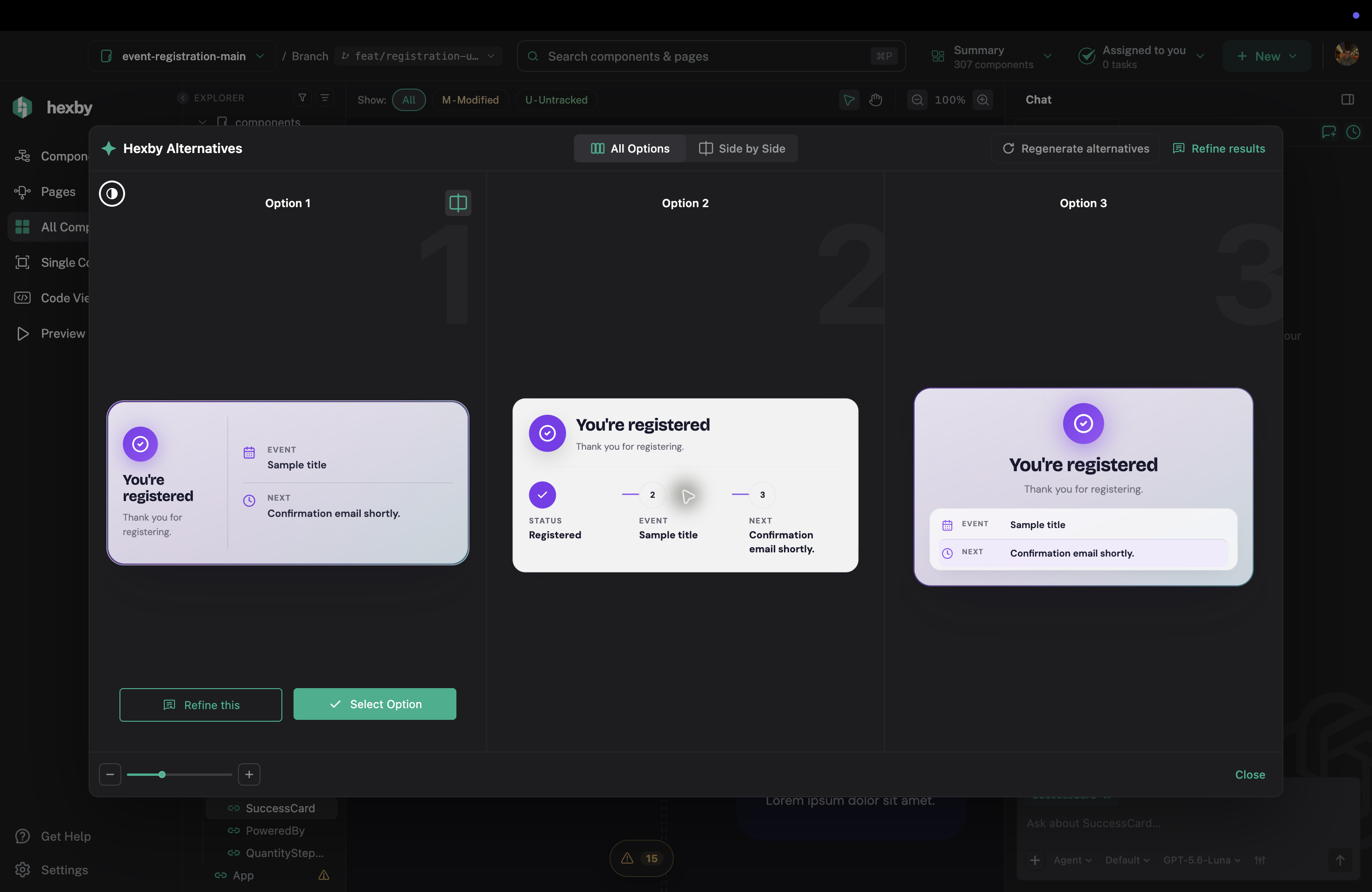
Compare several live directions in one place before choosing one to implement.
Refine a direction
Keep prompting until one option is close. Be specific about what should stay the same and what should change:
Keep this information hierarchy, reduce the number of surfaces, and make the secondary action quieter on narrow screens.
Alternatives use the selected component, its preview, and project context. They are meant to improve clarity and task completion—not create random themes.
Before you carry it forward
Alternatives are exploratory. They do not write files into the project while you compare them. Check the option’s behavior, important states, accessibility, and fit with real data before choosing it.
When you are ready:
- Select the direction you want to keep.
- Ask the connected assistant to implement it in the project.
- Review the source diff and updated previews.
The selected direction still needs to follow your project guidelines and normal review process.
Next step
Use Make and Review Changes to turn a chosen direction into a reviewed project change.