
First Analysis
First analysis
Understand analysis progress, preview states, and what to do when a preview is blocked.
When you open a project, Hexby reads its structure and builds a visual workspace. It finds Pages and Components, maps their relationships, and prepares previews. Analysis does not change your project source.
What happens first
Hexby moves through four stages:
- Scanning project — reads the project and its setup.
- Finding components — identifies Pages, Components, and relationships.
- Preparing to render — prepares the preview environment.
- Rendering previews — generates the visual previews.
The workspace can open while this runs. Pages and components may appear progressively, and preview cards can remain loading until their render is ready. The component name shown beside a status is the item currently being processed, not an error message.
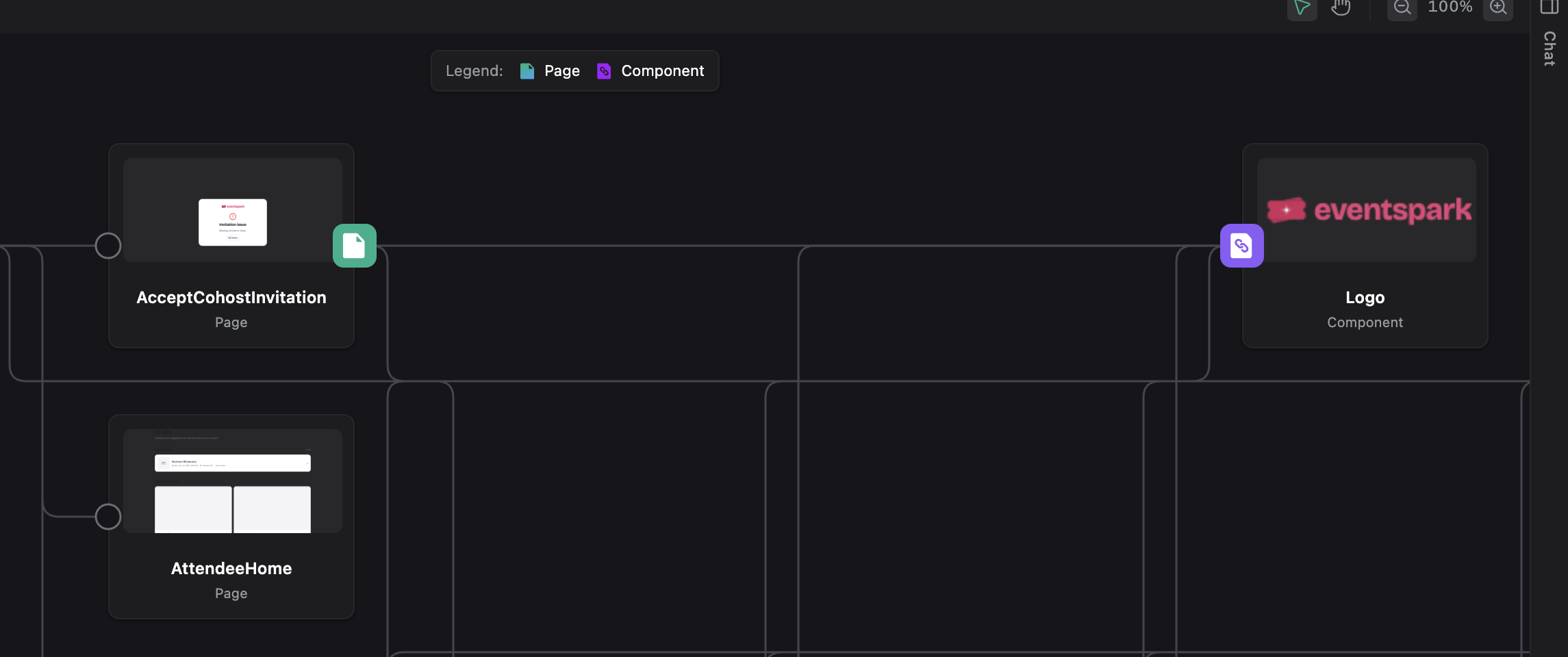
The map can become useful before every component preview is ready.
Read preview statuses
Analysis can identify a component even when its preview is not ready.
| Status | Meaning |
|---|---|
| Ready | The preview is usable. |
| Loading or pending | Hexby is still preparing the preview. |
| Partial | The preview works, but fallback values remain. |
| Blocked | The preview needs more information or setup. |
| Preview render failed | The last render attempt did not produce a usable preview. |
When a preview is blocked
A component may need data, a provider, a route, environment values, or a meaningful prop or state before it can render in isolation.
Click the Fix with agent button on the blocked component. Keep the investigation in chat: your connected assistant can inspect the selected component, identify what is missing, and retry the preview.
If the component needs safe example data, check AI enrichment. Enrichment updates the preview only; it does not change your project source.
If the preview still does not render, follow up in chat:
The preview is still not rendering. Inspect the selected component in chat, identify whether it is missing data, a route, a provider, or state, and fix the preview without changing production source. Retry the render and explain what remains.
A blocked preview does not automatically mean the production component is broken. It means Hexby needs more context to render that component in isolation; the chat flow is the fastest way to supply it.
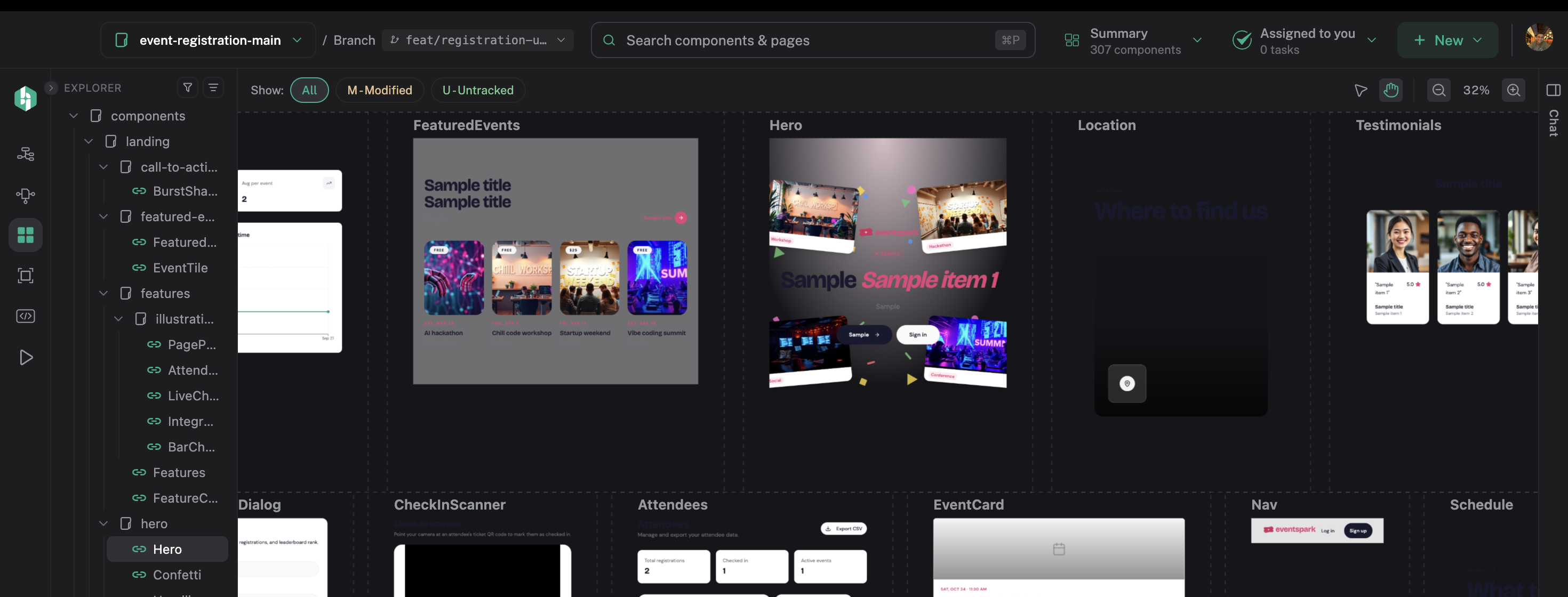
Keep exploring the ready components while a blocked preview is being resolved.
If analysis stops
Open the status message in chat and ask the connected assistant to explain what is missing. For a project-wide failure, see Troubleshooting.
Next step
When analysis is ready, start with Component Map for the project overview, then use Pages or All Components to find the UI that matters. Open a component in Single Component View to inspect its preview, states, usage, and source, then continue with the Product Tour.