
Support
Reference
Quick answers about requirements, views, statuses, shortcuts, and common Hexby terms.
Use this page when you need a compact reminder rather than a complete guide.
Requirements at a glance
- Git CLI: Required on the machine running Hexby. Check with
git --version. Install it from the official macOS, Windows, or Linux page. - Project: React or Preact built with Vite or Next, or Angular built with the Angular CLI, with dependencies available on the machine running Hexby. Angular component previews need Angular 17 or newer.
- GitHub CLI (
gh): Optional. GitHub sharing can use Hexby’s GitHub connection without the CLI. - Browser reviewer: Can open a shared review without the desktop app, a local checkout, or a running development server.
Views and when to use them
| View | Best for |
|---|---|
| Component Map | Seeing page, layout, and component relationships across the project. |
| Pages | Understanding one screen and its component dependencies. |
| All Components | Finding a reusable UI element across the project. |
| Single Component View | Inspecting one component’s preview, states, usage, and source. |
| Code View | Reading, editing, searching, and reviewing project files. |
| Preview App | Testing routes, providers, and full-application behavior. |
| Review Changes | Comparing the result with the source diff before sharing. |
Useful keyboard shortcuts
These shortcuts apply to Code View. Primary means Command on macOS and
Ctrl on Windows or Linux.
| Action | macOS | Windows/Linux |
|---|---|---|
| Quick open | ⌘P | Ctrl+P |
| Search project files | ⌘⇧F | Ctrl+Shift+F |
| Save the active file | ⌘S | Ctrl+S |
| Close the active tab or window | ⌘W | Ctrl+W |
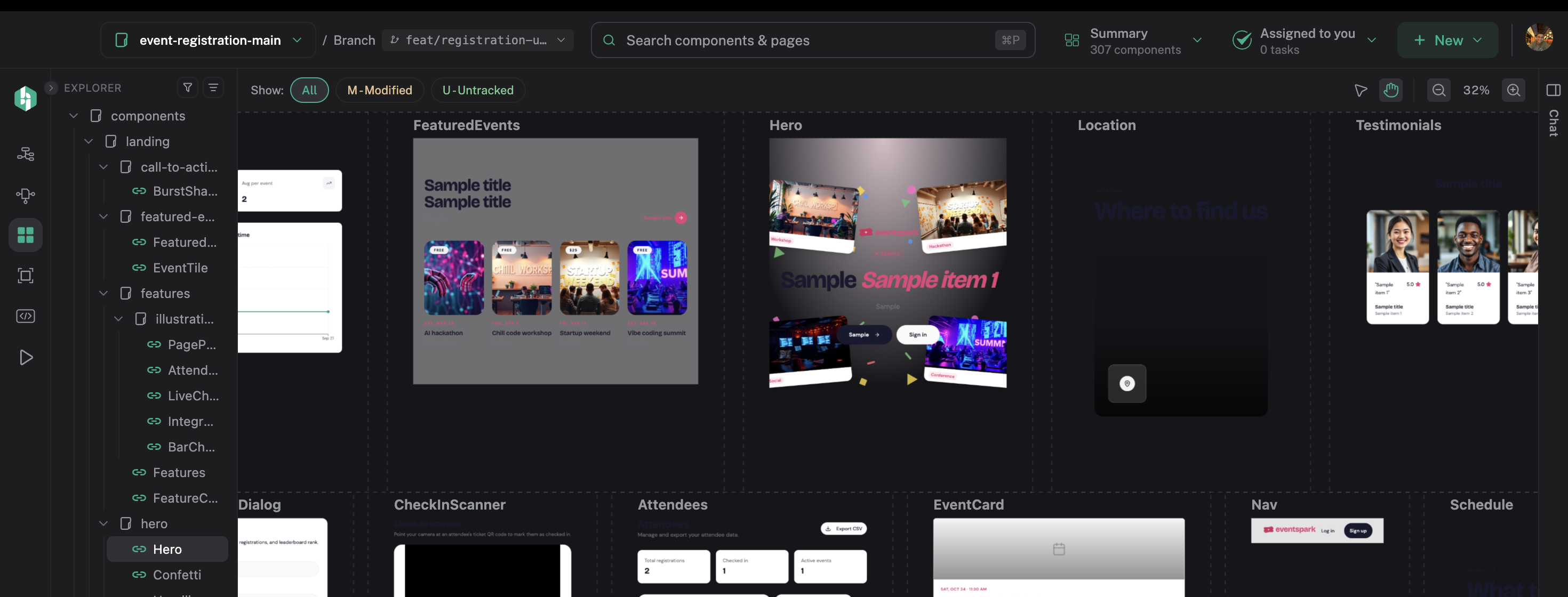
Canvas controls are also available in the toolbar. Use the select and hand tools to move around the canvas, and use the zoom controls to see context or detail. Shortcuts can vary by view and are not applied while you are typing in an editable field.
Status meanings
| Status | Meaning |
|---|---|
| Scanning project | Hexby is reading the project and its setup. |
| Finding components | Pages, components, and relationships are being identified. |
| Preparing to render | The preview environment is being prepared. |
| Rendering previews | Component visuals are being generated. |
| Ready | The preview is usable. |
| Loading or pending | Hexby is still preparing the preview. |
| Partial | The preview works, but one or more fallback values remain. |
| Blocked | The preview needs more information or setup. |
| Preview render failed | The last render attempt did not produce a usable preview. |
A preview status is not a verdict on production code. Use Preview App and Code View when the isolated preview is not enough.
Common questions
What is Hexby?
Hexby is a visual workspace for the UI already represented in your project. It connects previews, pages, relationships, source files, and review actions.
Does Hexby replace my coding assistant?
No. You connect an assistant that you already use. Hexby supplies visual context; the assistant uses its own account, tools, and usage limits.
Does Hexby work with apps made in Lovable, Bolt, v0, or Replit?
Yes, when you can access the underlying project code and it meets Hexby’s supported project requirements. See Vibe-coded projects.
Will Hexby push straight to production?
No. Source changes still go through your team’s GitHub review and merge workflow. Hexby does not approve or merge work for you.
Do preview edits change production code?
No. Preview-only edits and enrichment data are temporary inspection aids. They reset when the preview reloads. Use Apply changes or an assistant request to create a source change, then review the diff.
Data and privacy boundaries
- The project you open remains the source of truth.
- Hexby keeps its analysis, previews, sessions, and settings in its own application-managed storage associated with the project.
- Do not paste passwords, API keys, tokens, production secrets, or real customer data into preview enrichment or help requests.
- AI requests use the connected assistant’s account, provider, tokens, or credits.
- GitHub sharing uses the account and repository permissions you authorize.
Glossary
- Component: A reusable piece of UI identified in the project.
- Page: A screen or application entry point composed from components.
- Preview: A rendered view of a component or the full application.
- Scenario: A meaningful combination of preview inputs and state.
- Usage: The pages or parent components that reference a component.
- Component Map: The project-wide view of page, layout, and component relationships.
- Enrichment: Preview-only data or context supplied to help a blocked component render.
- Review: The step where you inspect previews and source changes before sharing them.
Next step
Return to the Quickstart or use Troubleshooting if something is not working.