
Code View
Code View
See the source behind the UI and review exactly what changed.
Use Code View when you want to see the files behind a page or component. You can browse the project, search its files, and review changes with the visual context still nearby.
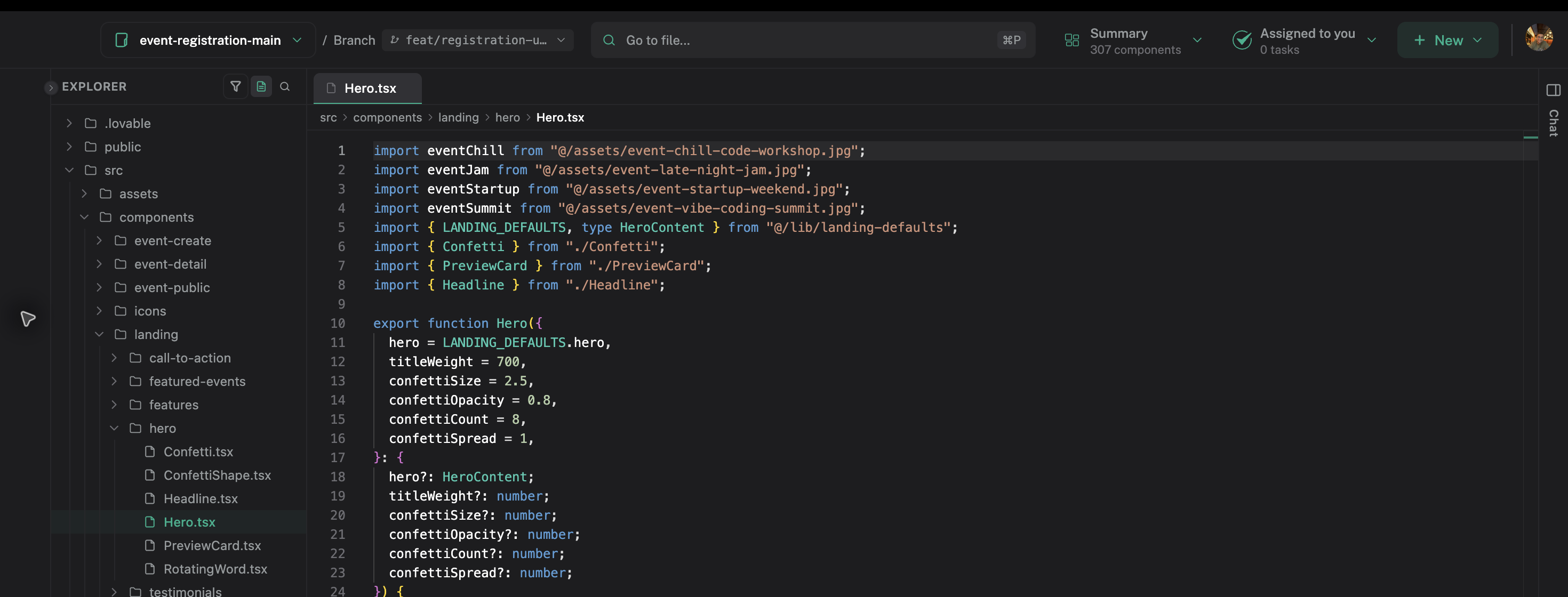
Code View keeps the file tree, selected source file, and project search together.
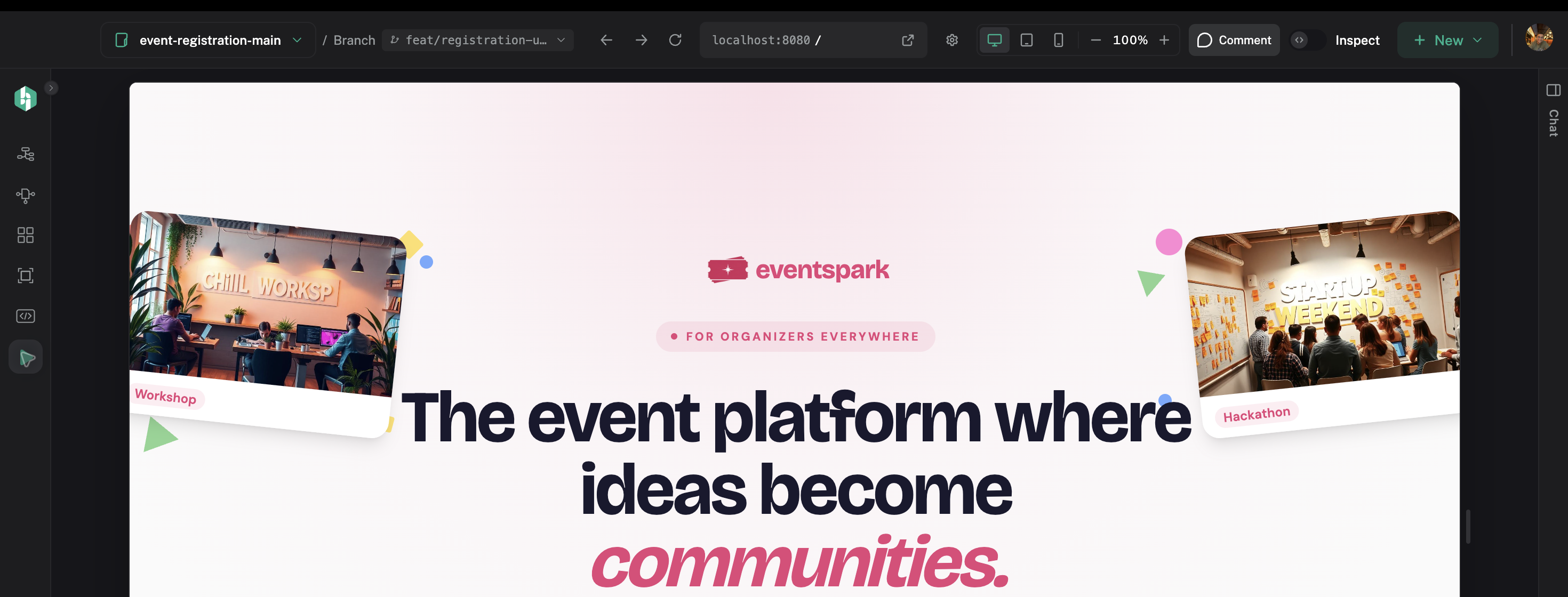
Return to the running app when a source question depends on routes or providers.
Open the source
- Select a component or page.
- Choose View code or its source reference.
- Read the highlighted file and the nearby code.
The highlighted file is a starting point. A visual change may also involve a parent component, shared style, or route.
Find a file or text
Use the file explorer to browse folders. Use quick open to search by file name, component, or folder. Use project search to find text across the project.
On macOS, press ⌘P for quick open or ⌘⇧F for project search. On Windows and Linux, use Ctrl+P or Ctrl+Shift+F.
Ask for a change
You do not need to edit code yourself. Ask your connected assistant to explain the source or make a focused change. Any saved edit changes the real project, so make sure the correct project is open and review the result afterward.
Review the result
Before you keep a change:
- Check the changed files and diff.
- Confirm the requested behavior and relevant states.
- Return to the preview and check the affected screen sizes.
- Open Review Changes for the full before-and-after view.
Look for unrelated edits, missing states, or changes to shared components that you did not request.
When the preview looks stale
Wait for the preview to refresh, then reopen the page or component. If it still looks wrong, check Troubleshooting.
Next step
Use Make and Review Changes to connect a visual request to the assistant, source diff, and final review.