
Connect Ai Agent
Connect an AI agent
Connect the coding assistant you already use and make your first focused request.
Connect the coding assistant you already use to Hexby. Hexby supplies project and visual context; the agent reads, prompts, and edits your source according to the permission you give it.
Use your existing subscription. Hexby does not include model usage or a separate AI plan. Your provider’s subscription or account, tokens, credits, API key, limits, and billing still apply.
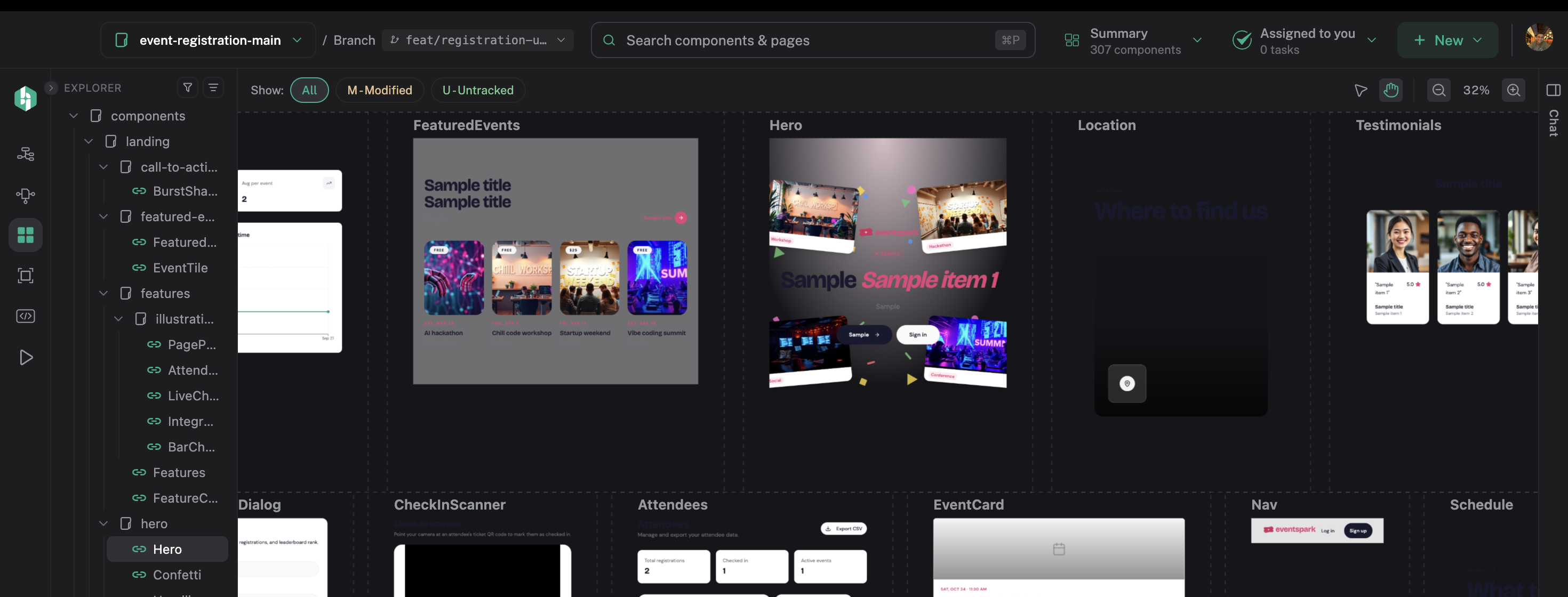
Common agents
Common options include:
The options shown in Hexby can vary by installation. Use the agent that is already part of your coding workflow; Hexby does not create a second account for you.
Before you connect
You need:
- A project open in Hexby
- One supported agent installed on the same machine
- An active sign-in, subscription, or API key with that provider
- Any provider credits or usage required for the request
Connect your agent
- Open the agent connection screen during onboarding, or open Settings and choose the agent section.
- Select the agent you want to use.
- Finish the sign-in or authorization step shown for that agent.
- Choose the permission level you are comfortable granting.
- Wait for Hexby to show that the connection is ready.
If the agent offers multiple sign-in methods, use the one already configured for your normal coding workflow. A connected status means the agent can receive your workspace context and respond to requests.
Make a first request
Select a component, then open Single Component View when you want to inspect it in isolation. Prompt the agent with one focused outcome:
Make the primary action easier to notice on mobile. Keep the existing color system, preserve keyboard focus, and show me the changed files when you are done.
Watch the preview update as the agent works. When the result is close, refine the request with the remaining visual issue instead of starting over.
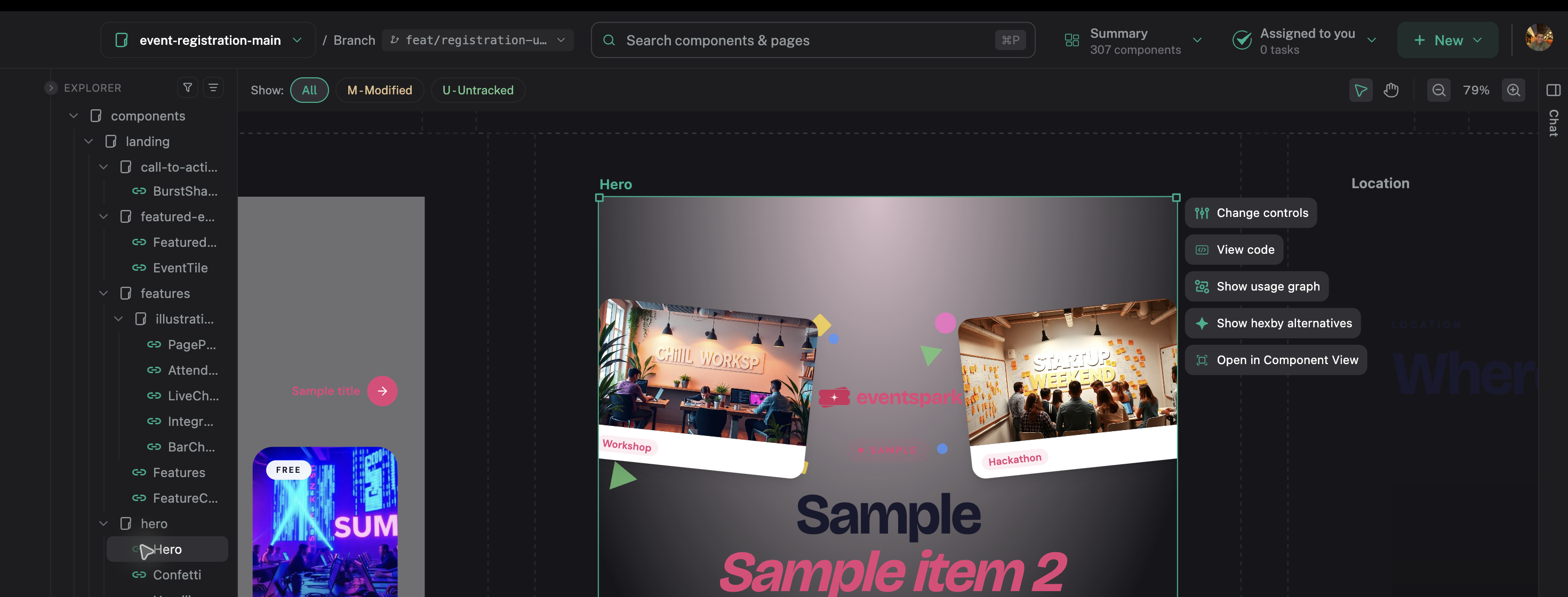
Start with read-only inspection when you are unsure about the scope. Before sharing a source change, check the updated preview, Code View, and Review Changes.
If the connection fails
Check that the agent is installed, signed in for the same operating-system user, and not locked by another session. Complete any browser or device authorization, then retry. If it still fails, see Troubleshooting.
Next step
Use AI Assistant for prompt patterns and workspace context, or follow Make and Review Changes for the full visual-to-code workflow.