
Make And Review Changes
Make and Review Changes
Follow the visual-to-code workflow from a selected UI element to a reviewed change.
This is the core Hexby workflow: select the real UI, describe the outcome, let your connected assistant work from that context, and review both the preview and source before sharing.
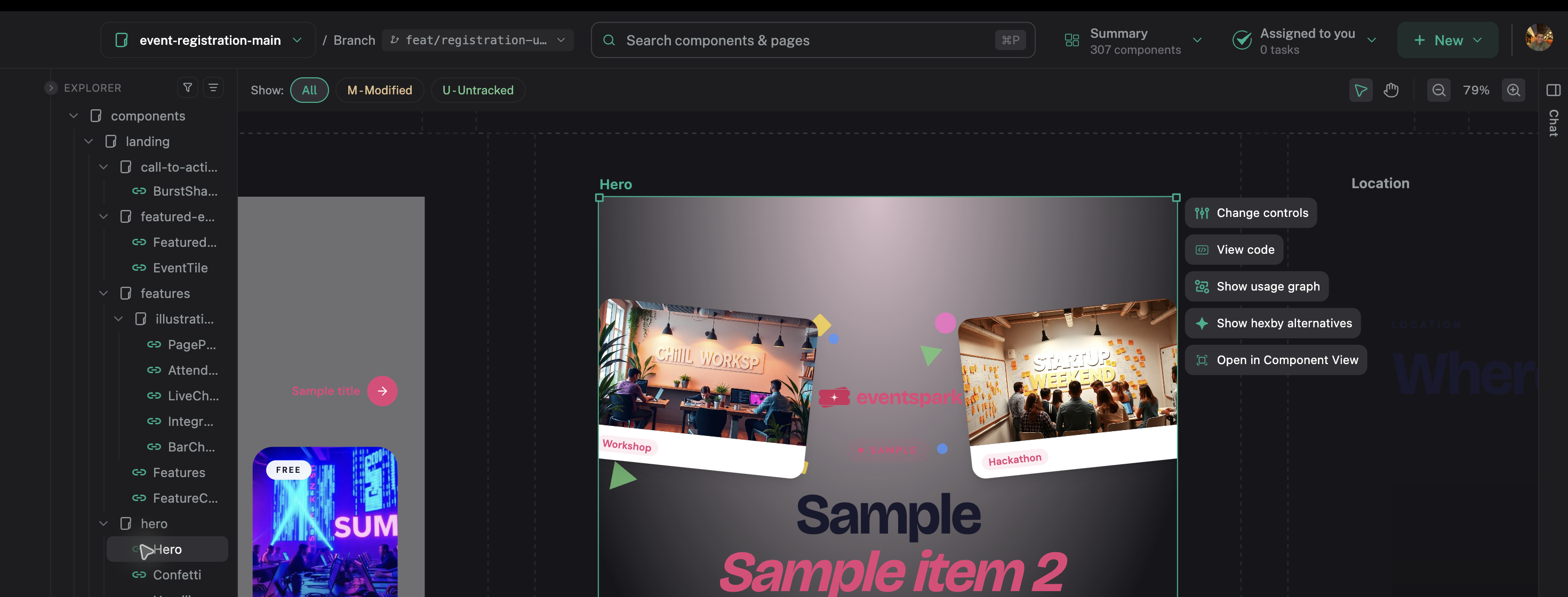
Start with a visible target and a focused request.
1. Choose the right target
Start in Component Map for project context, then use Pages for one screen or All Components to find the exact component. Open its preview and check where it is used before requesting a change.
If the component is shared, decide whether the requested behavior should change everywhere. If it should change on one screen only, the correct target may be a parent component or page-level composition instead.
2. Inspect before editing
Open Single Component View and check:
- The current preview and relevant states
- Usage and parent components
- Dependencies and related components
- The source file
- The page or route where the issue appears
Open Preview App when the issue depends on the full application context.
3. Describe the outcome
Write one focused request. Include:
- What is wrong or unclear
- What should change
- What must stay the same
- Which state, route, or viewport matters
- How you want to review the result
For example:
On the selected settings page, make the save action easier to find when the form is invalid. Keep the current button style, preserve keyboard focus, and show the error state on a narrow viewport.
Describe the user outcome rather than only naming a CSS property. Separate unrelated visual, data, and navigation work when it can be reviewed separately.
4. Let the assistant work
The connected assistant may inspect the selected component, related parents, source files, and current preview before it writes code. Watch the chat and workspace selection to understand what it is using as context.
If it asks for permission, read the action before accepting it. You can ask for an explanation or narrow the request before allowing a source edit.
5. Check the updated preview
When the assistant finishes, return to the affected component or page and compare the result with the original. Check the state named in the request, then check other states that could be affected by the same change.
Inspect:
- Layout, spacing, typography, and hierarchy
- Contrast, focus, disabled, and error states
- Responsive behavior at the relevant viewport
- Empty, loading, and populated content
- Surrounding page composition and navigation
If the change is app-level, repeat the check in Preview App.
If the isolated preview is blocked, click Fix with agent and keep the repair in chat. Use AI enrichment when the component needs example data.
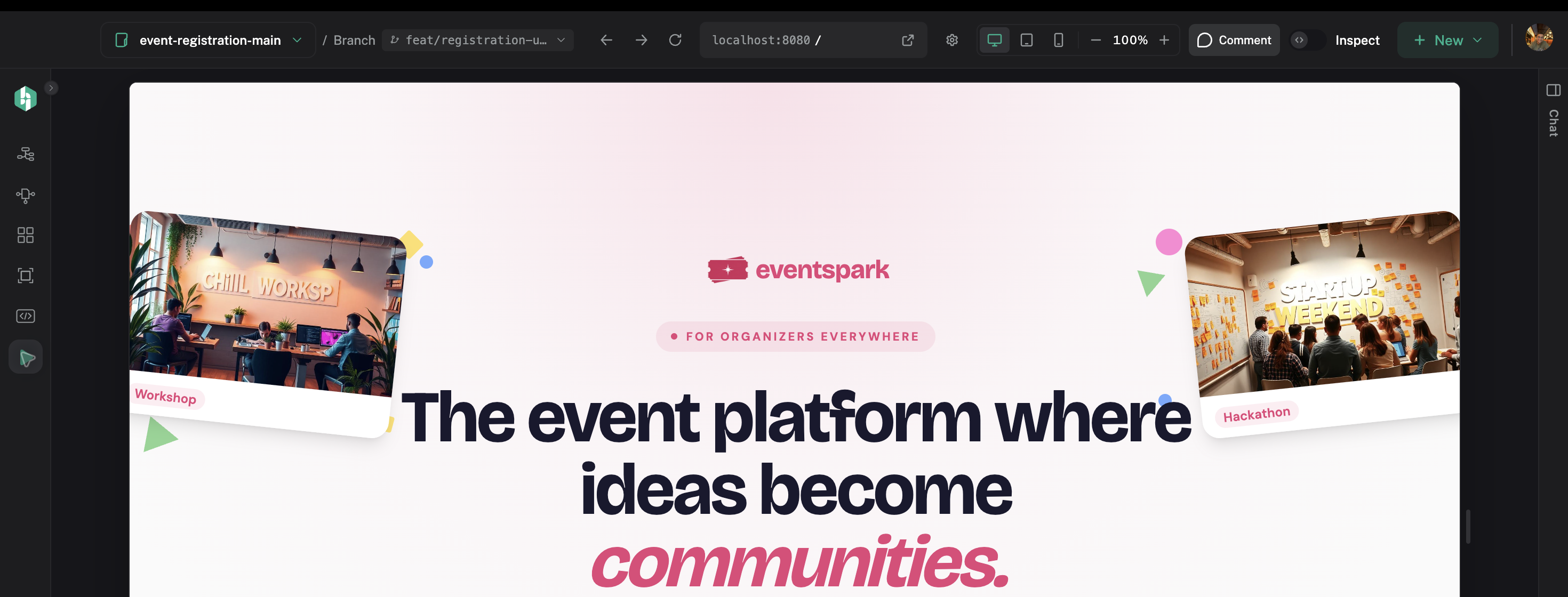
Check the full route when the isolated component is not enough.
6. Review the source diff
Open Code View and then Review Changes. Confirm that:
- The changed files are expected.
- The implementation matches the requested outcome.
- Shared components are not changed accidentally.
- There are no debug statements, secrets, or unrelated refactors.
- The source remains readable and follows Project Guidelines.
The preview is an important check, but it is not a substitute for reading the source change.
7. Refine when necessary
If the result is close but not right, describe the remaining visible issue and the constraint to preserve:
The hierarchy is correct, but the secondary action is still too prominent on mobile. Reduce its emphasis without moving it below the primary action.
Review the new preview and diff again. Keep each refinement narrow enough that you can tell whether it solved the problem.
8. Prepare the handoff
When the result is ready:
- Confirm the final preview and relevant states.
- Confirm the changed files and source diff.
- Add any review note or acceptance detail your team needs.
- Use Share Changes when you are ready to send the work through GitHub.
Hexby does not silently merge assisted work. Your team still decides whether a change is approved and merged.
Preview-only versus source changes
Some preview controls and enrichment actions change only the information used to render a preview. Those changes help you inspect the UI and do not become production code automatically. Preview-only edits reset on reload.
An assistant request that writes project files is a source change. Review it in Code View and Review Changes before sharing.
Next step
Use Review Changes for the complete before-and-after review, then Share Changes when the work is ready.