
Review Changes
Review Changes
Compare the visual result and source diff, collaborate with reviewers, and decide what is ready to share.
Use Review Changes before you share or merge an assisted change. It brings the visual result and source changes together so you can check whether the implementation matches the request.
Open the review
Open Review Changes from New → Open the review when the project has changes to inspect. Confirm that the correct project and branch are open.
The review is a checkpoint, not an approval or merge action. If there is nothing new to review, the action may be unavailable.
Review the changed files
Start with the changed-file list:
- Open the file or diff and read the surrounding code.
- Confirm that each file belongs to the request.
- Check for accidental edits, missing updates, or unrelated cleanup.
A small visual request can legitimately touch several files, but every file should have a reason to be there.
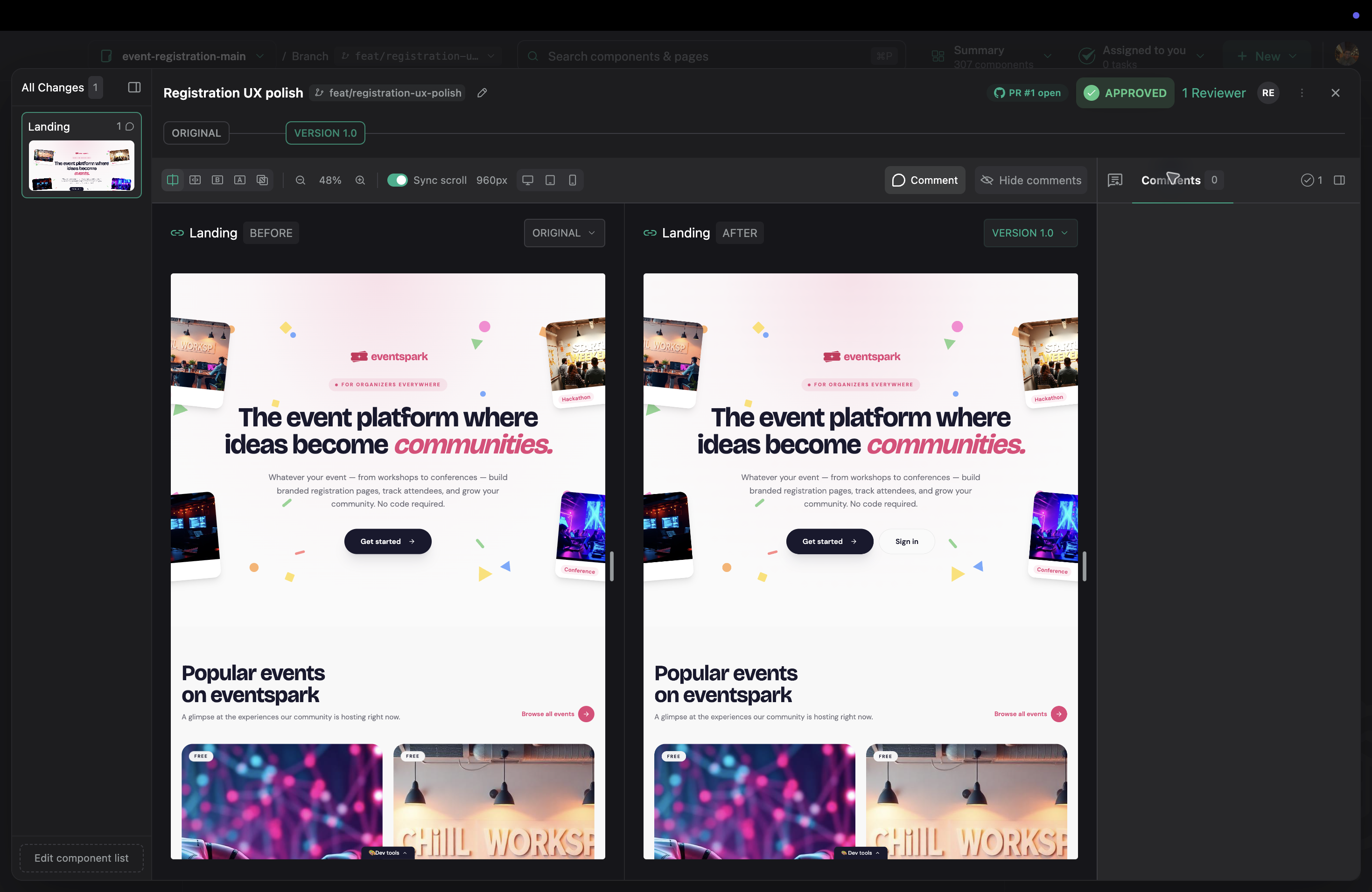
The review also groups changed components and marks pages or components that are affected by the change. Use that list to spot unexpected impact before you compare the UI.
Compare the visual result
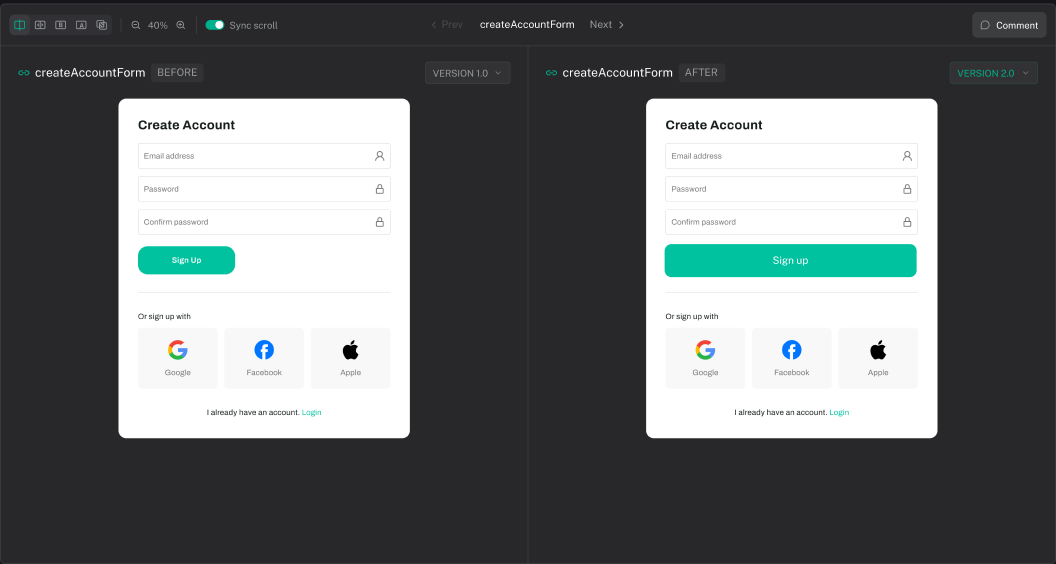
Compare the same component, page, viewport, and state before and after. Check layout, hierarchy, responsive behavior, and important empty, loading, error, or populated states.
Use side-by-side, slider, before-only, after-only, or overlay mode. Keep Sync scroll on when both sides need to move together, and switch it off when you want to inspect each result independently.
If a changed component cannot render, use Fix with agent in the blocked notice and keep the repair in chat. Use Skip it only when that component is not part of the review.
If the result depends on the full application, open Preview App and test it in its route and provider context as well.
Collaborate with reviewers
When the review is ready for another person, share the review link. Reviewers can open it in a browser; they do not need the desktop app or local checkout.
Use the action that matches the review status:
- Send for review — invite reviewers and publish the current version.
- Copy link — share an active review with teammates.
- Send update — publish a new version after requested changes.
- Hand off to developers — send an approved version to GitHub.
Use comments to point to the screen and the decision that needs attention. A useful comment says what is wrong, where it appears, and what outcome you expect:
On the mobile settings view, the error message pushes the primary action below the fold. Keep the message visible and keep the action reachable.
Keep the discussion with the review so the context is not lost in a separate chat.
Request a refinement
If the change is close but not ready, describe the remaining visible issue to the connected assistant:
The card is correct on desktop, but the action row wraps too early on mobile. Keep the current hierarchy and make the secondary action fit without hiding the primary action.
Review the next result using the same comparison criteria. Keep requests focused so it is clear which change solved the issue. If reviewers requested the change, use Send update when the new version is ready.
Ready-to-share checklist
- The requested UI outcome is visible.
- Relevant component states and viewports have been checked.
- The full page or app still works where the change affects it.
- Changed files are expected and readable.
- No secrets, debug output, or unrelated edits are included.
- Reviewers have enough context to make a decision.
When these checks pass, use Share Changes to send the work through GitHub.
If the preview and source disagree
Wait for the preview to finish refreshing, confirm the correct project and file are open, and reopen the component or page. If the mismatch remains, use Troubleshooting for stale-preview and failed-refresh guidance.
Next step
Use Share Changes when the result is ready for the repository’s normal review and merge process.