
Switch between tasks and branches
Move to other work, keep unfinished edits, and pick them up later.
Switch between tasks and branches in Hexby while keeping your unfinished work for later. You can also open another Git worktree, a separate folder for a branch of the same project.
This is useful when you need to pause one change to work on another. For example, you can leave a checkout-page update to fix a navigation issue, then return to finish checkout.
Open another task or branch
Open a task from Overview, or open Branch in the project header and select a branch. A branch is a separate line of work in Git. Switching to it shows that branch’s files in your workspace.
When switching branches in the same folder, Hexby asks what to do with any unfinished edits before switching.
Choose what happens to your edits
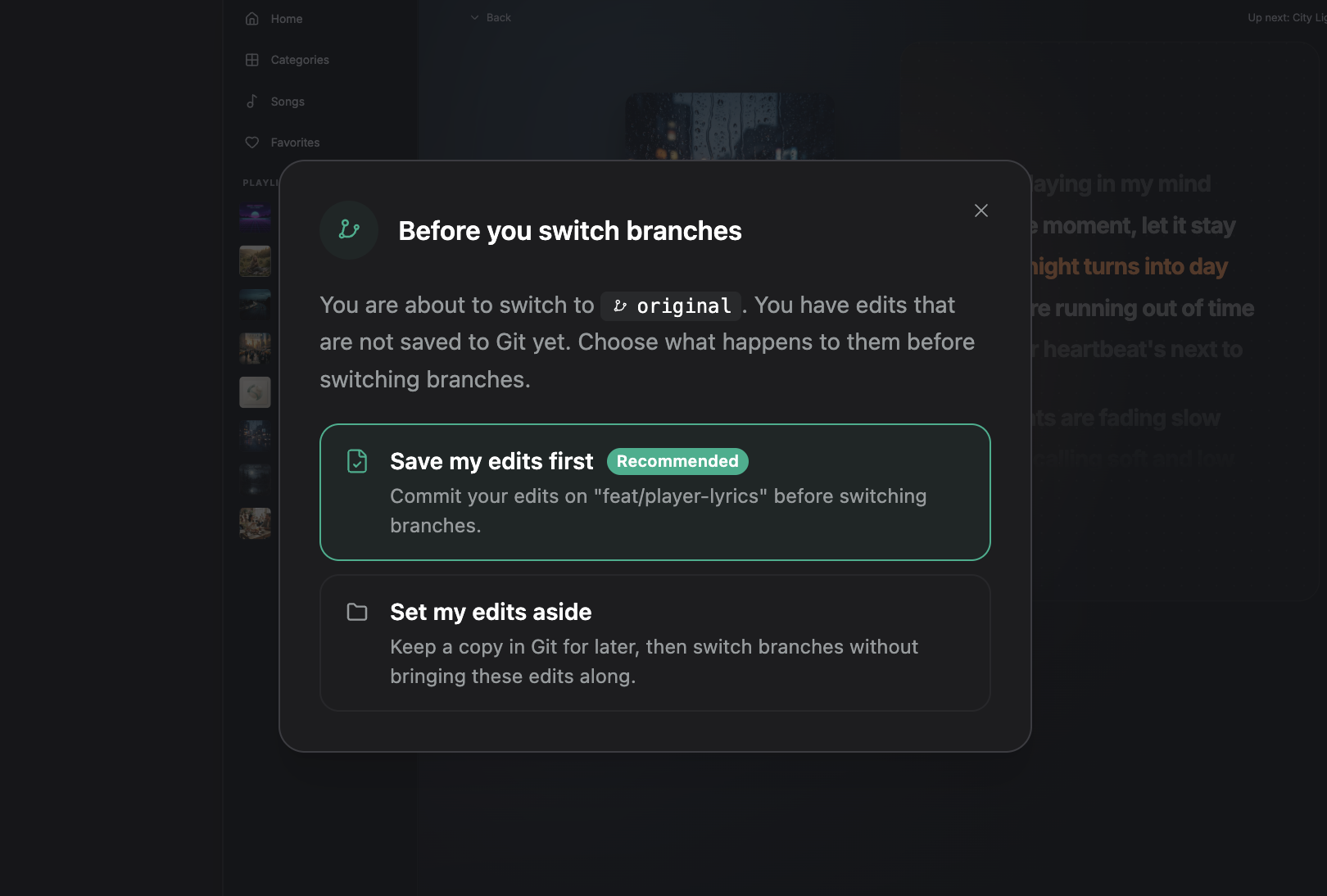
| Choice | What happens | How to return |
|---|---|---|
| Save my edits first | Saves your edits in a Git commit, then switches. | Switch back to see your saved changes. |
| Set my edits aside | Stores your edits, including new files, in a Git stash, then clears them from the current files. | Switch back and restore the stash using your Git editor or terminal. |
For Save my edits first, enter a short message describing your change.
A commit saves work locally. It does not push your changes to your team’s repository. A stash also stays on your computer.
Return to your edits
If you chose Save my edits first, switch back to the original branch to see your saved changes.
If you chose Set my edits aside, switch back to the original branch, then restore the stash. Switching back does not restore it automatically. Hexby has no stash restore button. Use your Git editor’s stash controls or open a terminal in the project folder.
Restore edits with Git
- Run
git stash list. Look for the entry from your switch. Branch switches useHexby: before switching from … to …; task switches usehexby: parked for task …. - Note its number. For an entry listed as
stash@{0}, check the saved files withgit stash show --stat --include-untracked 'stash@{0}'. - Restore that entry with
git stash apply 'stash@{0}'. Replace0in both commands if your entry has a different number.
Applying keeps the stash as a backup. Check the restored files before continuing. If Git reports conflicts, some saved edits could not be combined with the current files. Open those files in your editor’s merge tool, or ask your AI Agent to help resolve them. Keep the stash and do not apply it again while resolving the conflicts.
Open another worktree
If you already have worktrees, open Branch and select an entry with a folder beneath its name. Search by branch name or folder path to find it. Your edits stay in the original worktree, so you do not need to commit or stash them first.
Select the original worktree in Branch to return to its unfinished edits. You can also switch branches in your current folder without a worktree.
Worktrees in the same Hexby project share chats, Design Labs, and preview data. Source edits stay in their own folders. A worktree already saved as a separate Hexby project keeps its own project data.
To pick up a conversation in the new folder, choose Continue with a summary. Create or remove worktrees outside Hexby with Git or your editor’s worktree controls. The Branch menu opens existing worktrees.
Finish or cancel a switch
Needs packages means Hexby needs to prepare dependencies for that branch. For another worktree, you can keep working in your current folder while this runs. Finishing the switch waits for any active agent turn to end.
If you were typing when preparation finished, click Switch to move there. Use Cancel when available to stop preparation. For another worktree, your current folder stays open. For a branch switch started in Hexby, it switches back to the previous branch. If that fails, read the error before continuing.
Check the branch in the header before making your next edit. If switching fails, see Troubleshooting.